Define key bindings for Eclipse Commands. This tutorial describes how to define shortcuts for Eclipse commands. This article uses the Eclipse 3.x API see https://www.vogella.com/tutorials/EclipseRCP/article.html for a more recent way of implemeting commands and key bindings.

| This tutorial describes the Eclipse 3.x API which is used for Eclipse IDE plug-in development. For an Eclipse RCP application you should use the new Eclipse 4 API which is described in the Eclipse RCP tutorial. |
1. Eclipse key bindings
Via key bindings you can define shortcuts for your Eclipse Commands.
Eclipse uses a default key configuration scheme. If your application uses existing plug-ins where key bindings are already defined these key bindings will be active in your Eclipse RCP application. If that is not desired then you can configure your product to use another scheme.
The following describes first how to create key bindings using this default configuration scheme. Afterwards, I how to overwrite the default key binding scheme of Eclipse.
To define a shortcut for a command you use
org.eclipse.ui.bindings
extension point
together with the
org.eclipse.ui.defaultAcceleratorConfiguration
schemeId
and the
org.eclipse.ui.contexts.window
contextId.
To define and use your own scheme you need:
-
Define a new scheme via extension point "org.eclipse.ui.bindings"
-
Assign this scheme to the key bindings you defined
-
Have a product created
-
Define the file "plugin_customization.ini" and set the scheme for the product via a property.
2. Prerequisites for this tutorial
This tutorial assumes that you have basic understanding of development for the Eclipse platform. Please see Eclipse RCP Tutorial or Eclipse plug-in Tutorial if you need any basic information.
3. Eclipse Commands
The following assumes that you are familiar with Eclipse Commands. To learn about them, you can use the Eclipse Commands Tutorial and the Eclipse Advanced Commands Tutorial,which contain an introduction to the material.
4. Tutorial: Defining key bindings for Commands
4.1. Keybinding using the default scheme
Create a new project "de.vogella.rcp.intro.commands.keybinding" using the "Hello RCP" template, declare command "de.vogella.rcp.intro.commands.keybinding.hello" with a default handler "de.vogella.rcp.intro.commands.keybinding.HelloHandler" which prints out "Hello" to the console Add the extension point "org.eclipse.ui.bindings" to your project. Right-click in this extension point, select New→ Key.
Select as schemeID "org.eclipse.ui.defaultAcceleratorConfiguration" this is the workbench default and will make sure you key binding is valid in the whole application. The commandId is the ID of the command you just created. The sequence is the shortcut key for calling the command. M1 represents the Ctrl key.
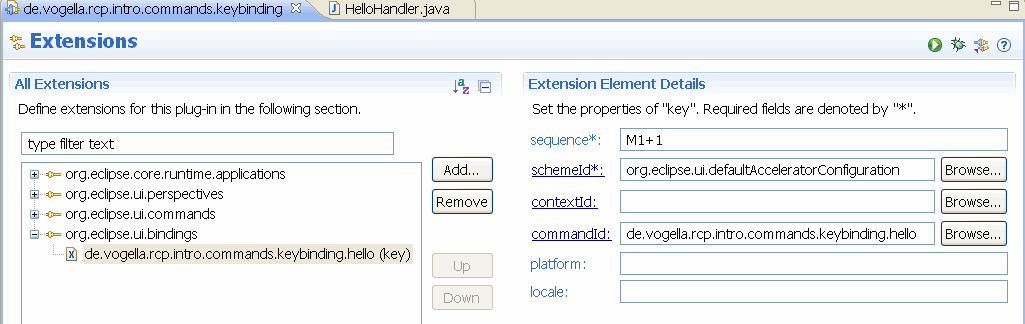
If you now run it the key binding should work and if you press Ctrl+1 the message on the console should be visible.
4.2. Defining your own scheme
Add now another key binding Ctrl+N to the command "de.vogella.rcp.intro.commands.keybinding.hello". Try it. This will not work as it is conflicting with the Eclipse default schema. Right-click in this extension point "org.eclipse.ui.bindings", select New→ Scheme. Create a schema with the ID "MyScheme".
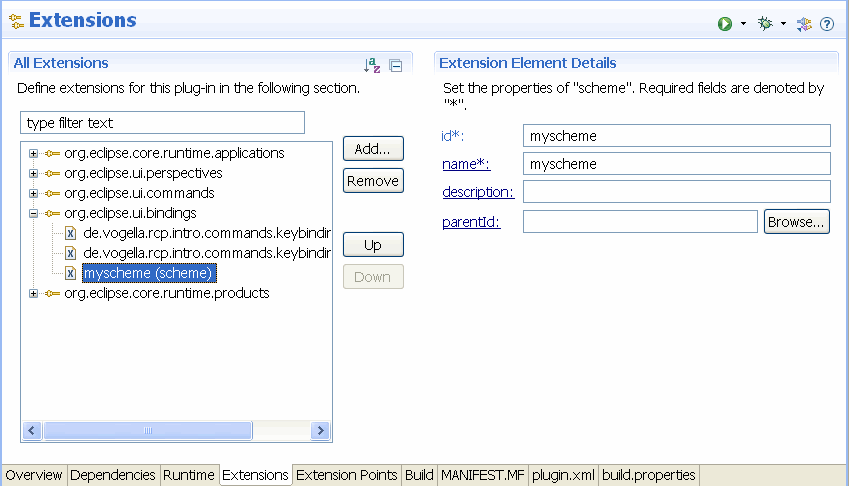
Assign the scheme id to your commands.
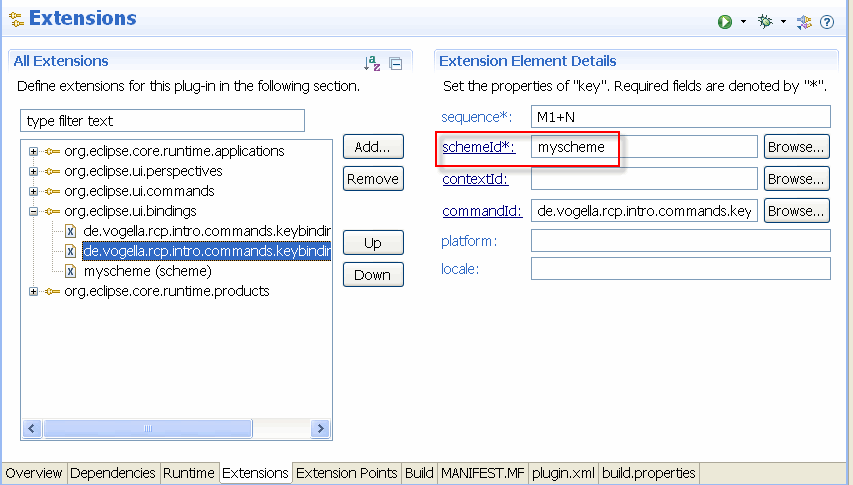
Define a product. See Defining a product for Eclipse RCP for details. Create the following file "plugin_customization.ini" and put it in your main directory
org.eclipse.ui/KEY_CONFIGURATION_ID=myscheme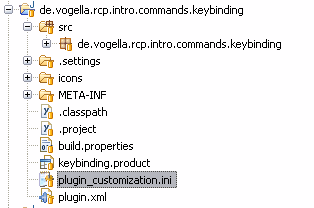
If you now run your product the Ctrl+N shortcut should work.
5. Links and literature
5.2. vogella Java example code
If you need more assistance we offer Online Training and Onsite training as well as consulting


