This tutorial describes the usage of the JDT API to create additional content assists, quick fixes and save actions. It explains the Abstract Syntax Tree (AST) and the Java model in Eclipse.

1. The Java model and the Java Abstract Syntax Tree
The Eclipse Java Development Tools (JDT) project provides APIs to access and manipulate Java source code. It provides access to the Java source code via:
-
the Java Model
-
the Abstract Syntax Tree (AST)
1.1. Java Model
Each Java project is internally represented via a model. This model is a lightweight and fault-tolerant representation of the Java project. It does not contain as much information as the AST, but it is fast to create. For example, the Outline view uses the Java model to be fast.
The Java model is defined in the org.eclipse.jdt.core plug-in.
It is a tree structure, which is described in the following table.
| Project Element | Java Model element | Description |
|---|---|---|
Java project |
IJavaProject |
The Java project that contains all other objects. |
Source folder, binary folder or external library |
IPackageFragmentRoot |
Holds source or binary files, can be a folder or a library (zip or JAR file). |
Package |
IPackageFragment |
Each package is located below an IPackageFragmentRoot. Sub-packages are not children of their parent package, they are listed directly under the IPackageFragmentRoot. |
Java source file |
ICompilationUnit |
The source file is always below the package node. |
Types / Fields / Methods |
IType / IField / IMethod |
Types, fields and methods. |
1.2. Abstract Syntax Tree (AST)
The AST is a detailed tree representation of the Java source code. The AST defines an API to modify, create, read and delete source code.
The main package for the AST is org.eclipse.jdt.core.dom, located in the org.eclipse.jdt.core plug-in.
Each Java source element is represented as a subclass of the ASTNode class.
Each specific AST node provides specific information about the object it represents.
For example, you have:
-
MethodDeclaration: for methods -
VariableDeclarationFragment: for variable declarations -
SimpleName: for any string which is not a Java keyword, a Boolean literal (trueorfalse) or thenullliteral
The AST is typically created based on an ICompilationUnit from the Java model.
The process of working with the AST is typically the following:
-
Provide some Java source code to parse.
-
Parse the source code via
org.eclipse.jdt.core.dom.ASTParser, which returns an AST. -
To modify the Java source code, manipulate the AST.
-
Write the changes back to the source code, for example, via an
ASTRewriteand theIDocumentinterface.
To find an AST node, you could walk through all levels of the AST.
A better solution is to use the visitor pattern via the ASTVisitor class.
2. Prerequisites
This article assumes that you are familiar with Eclipse plug-in development. See Eclipse plug-in development tutorial for an introduction.
3. Example: Accessing your Java projects with the JDT Java model
The following example creates a command that reads the projects of the workspace, gets all packages and Java source files of these projects and reads all their methods by using the JDT Java model API.
Create a plug-in project called com.vogella.jdt.infos.
Choose the Menu contribution using 4.x API template.
This template creates the com.vogella.jdt.infos.handlers.HelloWorldHandler handler and adds it to the E4 Handlers menu.
Add the following dependencies to your plug-in:
-
org.eclipse.core.resources
-
org.eclipse.core.runtime
-
org.eclipse.jdt.core
-
org.eclipse.jface.text
Change the handler to the following.
package com.vogella.jdt.infos.handlers;

import org.eclipse.core.resources.IProject;
import org.eclipse.core.resources.IWorkspace;
import org.eclipse.core.resources.IWorkspaceRoot;
import org.eclipse.core.resources.ResourcesPlugin;
import org.eclipse.core.runtime.CoreException;
import org.eclipse.e4.core.di.annotations.Execute;
import org.eclipse.jdt.core.ICompilationUnit;
import org.eclipse.jdt.core.IJavaProject;
import org.eclipse.jdt.core.IMethod;
import org.eclipse.jdt.core.IPackageFragment;
import org.eclipse.jdt.core.IPackageFragmentRoot;
import org.eclipse.jdt.core.IType;
import org.eclipse.jdt.core.JavaCore;
import org.eclipse.jdt.core.JavaModelException;
import org.eclipse.jface.text.Document;

public class HelloWorldHandler {

    @Execute
    public void execute() {
        IWorkspace workspace = ResourcesPlugin.getWorkspace();
        IWorkspaceRoot root = workspace.getRoot();
        IProject[] projects = root.getProjects();
        for (IProject project : projects) {
            try {
                printProjectInfo(project);
            } catch (CoreException e) {
                e.printStackTrace();
            }
        }
    }

    private void printProjectInfo(IProject project) throws CoreException {
        System.out.println("Working in project " + project.getName());
        if (project.isOpen() && project.isNatureEnabled(JavaCore.NATURE_ID)) {
            IJavaProject javaProject = JavaCore.create(project);
            printPackageInfos(javaProject);
        }
    }

    private void printPackageInfos(IJavaProject javaProject) throws JavaModelException {
        IPackageFragment[] packages = javaProject.getPackageFragments();
        for (IPackageFragment mypackage : packages) {
            // K_BINARY would also list the packages of the JARs on the classpath
            if (mypackage.getKind() == IPackageFragmentRoot.K_SOURCE) {
                System.out.println("Package " + mypackage.getElementName());
                printICompilationUnitInfo(mypackage);
            }
        }
    }

    private void printICompilationUnitInfo(IPackageFragment mypackage) throws JavaModelException {
        for (ICompilationUnit unit : mypackage.getCompilationUnits()) {
            printCompilationUnitDetails(unit);
        }
    }

    private void printIMethods(ICompilationUnit unit) throws JavaModelException {
        IType[] allTypes = unit.getAllTypes();
        for (IType type : allTypes) {
            printIMethodDetails(type);
        }
    }

    private void printCompilationUnitDetails(ICompilationUnit unit) throws JavaModelException {
        System.out.println("Source file " + unit.getElementName());
        String source = unit.getSource();
        if (source != null) {
            System.out.println("Has number of lines: " + new Document(source).getNumberOfLines());
        }
        printIMethods(unit);
    }

    private void printIMethodDetails(IType type) throws JavaModelException {
        IMethod[] methods = type.getMethods();
        for (IMethod method : methods) {
            System.out.println("Method name " + method.getElementName());
            System.out.println("Signature " + method.getSignature());
            System.out.println("Return Type " + method.getReturnType());
        }
    }
}
Start your plug-in in a new Eclipse runtime. In the runtime workspace, create a few Java projects with some packages and Java files. Select the menu entry.
The projects, packages and source files are listed in the Console view of the Eclipse IDE from which you started the runtime. == Modifying projects
3.1. Creating new Java elements via the Java model
The following example creates a command that adds a new package to existing (and open) Java projects. The package gets the same name as the Java project. For example, if you have a project com.vogella.test in your workspace without any package, this command creates the package com.vogella.test in its src folder.
Create a new plug-in project com.vogella.jdt.newelements.
Add a new command com.vogella.jdt.newelements.AddPackage and add it to the main menu.
Create the following handler for this command.
package com.vogella.jdt.newelements.handlers;

import java.util.Locale;

import org.eclipse.core.resources.IProject;
import org.eclipse.core.resources.IWorkspace;
import org.eclipse.core.resources.IWorkspaceRoot;
import org.eclipse.core.resources.ResourcesPlugin;
import org.eclipse.core.runtime.CoreException;
import org.eclipse.e4.core.di.annotations.Execute;
import org.eclipse.jdt.core.IJavaProject;
import org.eclipse.jdt.core.IPackageFragmentRoot;
import org.eclipse.jdt.core.JavaConventions;
import org.eclipse.jdt.core.JavaCore;
import org.eclipse.jdt.core.JavaModelException;

public class AddPackage {

    @Execute
    public void execute() {
        IWorkspace workspace = ResourcesPlugin.getWorkspace();
        IWorkspaceRoot root = workspace.getRoot();
        IProject[] projects = root.getProjects();
        for (IProject project : projects) {
            try {
                // only work on open projects with the Java nature
                if (project.isOpen() && project.isNatureEnabled(JavaCore.NATURE_ID)) {
                    createPackage(project);
                }
            } catch (CoreException e) {
                e.printStackTrace();
            }
        }
    }

    private void createPackage(IProject project) throws JavaModelException {
        IJavaProject javaProject = JavaCore.create(project);
        IPackageFragmentRoot srcFolder = javaProject.getPackageFragmentRoot(project.getFolder("src"));
        String packageName = project.getName().toLowerCase(Locale.ROOT).replaceAll("[^a-z0-9.]", "");
        // skip projects without a src source folder and names which give no valid package name
        if (!srcFolder.exists() || !JavaConventions.validatePackageName(packageName, JavaCore.VERSION_25,
                JavaCore.VERSION_25).isOK()) {
            return;
        }
        srcFolder.createPackageFragment(packageName, true, null);
    }
}| This adds the package with the Java project name to all open Java projects in the workspace. Make sure you want this. You could add the command to the context menu of the Package Explorer and apply it only to the selected project. You can learn how to do this in Eclipse plug-in development. |
3.2. Change the classpath
You can modify the classpath of your project. The following example handler is contained in project com.vogella.jdt.addclasspath. It adds the JUnit 6 library container to the classpath of all Java projects in the workspace.
package com.vogella.jdt.addclasspath.handlers;

import java.util.Arrays;

import org.eclipse.core.resources.IProject;
import org.eclipse.core.resources.IWorkspace;
import org.eclipse.core.resources.IWorkspaceRoot;
import org.eclipse.core.resources.ResourcesPlugin;
import org.eclipse.core.runtime.CoreException;
import org.eclipse.core.runtime.IPath;
import org.eclipse.e4.core.di.annotations.Execute;
import org.eclipse.jdt.core.IClasspathEntry;
import org.eclipse.jdt.core.IJavaProject;
import org.eclipse.jdt.core.JavaCore;
import org.eclipse.jdt.core.JavaModelException;

public class GlobalModifyClasspathHandler {

    private static final IPath JUNIT_CONTAINER_PATH = IPath
            .fromPortableString("org.eclipse.jdt.junit.JUNIT_CONTAINER/6");

    @Execute
    public void execute() {
        IWorkspace workspace = ResourcesPlugin.getWorkspace();
        IWorkspaceRoot root = workspace.getRoot();
        IProject[] projects = root.getProjects();
        for (IProject project : projects) {
            try {
                // only work on open projects with the Java nature
                if (project.isOpen() && project.isNatureEnabled(JavaCore.NATURE_ID)) {
                    changeClasspath(project);
                }
            } catch (CoreException e) {
                e.printStackTrace();
            }
        }
    }

    private void changeClasspath(IProject project) throws JavaModelException {
        IJavaProject javaProject = JavaCore.create(project);
        IClasspathEntry[] entries = javaProject.getRawClasspath();
        // a duplicate entry would make setRawClasspath fail
        if (Arrays.stream(entries).anyMatch(entry -> JUNIT_CONTAINER_PATH.equals(entry.getPath()))) {
            return;
        }
        IClasspathEntry[] newEntries = Arrays.copyOf(entries, entries.length + 1);
        newEntries[entries.length] = JavaCore.newContainerEntry(JUNIT_CONTAINER_PATH);
        javaProject.setRawClasspath(newEntries, null);
    }
}
The next example shows a handler which adds the Mockito library to the classpath of the Java project of the selected IJavaElement.
Adjust the path of the JAR file to a location on your machine.
package com.vogella.jdt.addclasspath.handlers;

import java.util.Arrays;

import jakarta.inject.Named;

import org.eclipse.core.runtime.IPath;
import org.eclipse.core.runtime.Status;
import org.eclipse.core.runtime.jobs.Job;
import org.eclipse.e4.core.di.annotations.CanExecute;
import org.eclipse.e4.core.di.annotations.Execute;
import org.eclipse.e4.ui.services.IServiceConstants;
import org.eclipse.jdt.core.IClasspathEntry;
import org.eclipse.jdt.core.IJavaElement;
import org.eclipse.jdt.core.IJavaProject;
import org.eclipse.jdt.core.JavaCore;
import org.eclipse.jdt.core.JavaModelException;
import org.eclipse.jface.viewers.IStructuredSelection;

public class ModifyClasspathHandler {

    // adjust to the location of the Mockito JAR on your machine
    private static final String MOCKITO_JAR = "/path/to/mockito-core.jar";

    @Execute
    public void execute(@Named(IServiceConstants.ACTIVE_SELECTION) IStructuredSelection selection) {
        if (selection.getFirstElement() instanceof IJavaElement javaElement) {
            Job job = Job.create("Setting the classpath", monitor -> {
                IJavaProject javaProject = javaElement.getJavaProject();
                IClasspathEntry libraryEntry = JavaCore.newLibraryEntry(IPath.fromOSString(MOCKITO_JAR), null, null);
                try {
                    IClasspathEntry[] entries = javaProject.getRawClasspath();
                    // a duplicate entry would make setRawClasspath fail
                    if (Arrays.stream(entries).anyMatch(entry -> libraryEntry.getPath().equals(entry.getPath()))) {
                        return Status.OK_STATUS;
                    }
                    IClasspathEntry[] newEntries = Arrays.copyOf(entries, entries.length + 1);
                    newEntries[entries.length] = libraryEntry;
                    javaProject.setRawClasspath(newEntries, monitor);
                } catch (JavaModelException e) {
                    return Status.error("Could not set classpath of Java project: " + javaProject.getElementName(), e);
                }
                return Status.OK_STATUS;
            });
            job.schedule();
        }
    }

    @CanExecute
    public boolean canExecute(@Named(IServiceConstants.ACTIVE_SELECTION) IStructuredSelection selection) {
        return selection.getFirstElement() instanceof IJavaElement;
    }
}
4. Using the AST
The following code creates an AST for each source file in your workspace. Afterwards, it prints out the name and the return type of each method using the AST.
Create a new plug-in project de.vogella.jdt.astsimple using the "Hello world" template.
Maintain the following plug-in dependencies.
Manifest-Version: 1.0
Bundle-ManifestVersion: 2
Bundle-Name: Astsimple Plug-in
Bundle-SymbolicName: de.vogella.jdt.astsimple;singleton:=true
Bundle-Version: 1.0.0
Bundle-RequiredExecutionEnvironment: JavaSE-25
Require-Bundle: org.eclipse.core.runtime;bundle-version="3.4.0",
 org.eclipse.ui;bundle-version="3.4.2",
 org.eclipse.jdt.core;bundle-version="3.4.4",
 org.eclipse.core.resources;bundle-version="3.4.2",
 org.eclipse.jdt.ui;bundle-version="3.4.2"
To get information about the AST you can use the Visitor Pattern. This allows you to add a visitor to the AST for a specific element. In this visitor can you capture information about the object and return it after processing the AST. Create for this the following class.
package de.vogella.jdt.astsimple.handler;

import java.util.ArrayList;
import java.util.List;

import org.eclipse.jdt.core.dom.ASTVisitor;
import org.eclipse.jdt.core.dom.MethodDeclaration;

public class MethodVisitor extends ASTVisitor {
    List<MethodDeclaration> methods = new ArrayList<>();

    @Override
    public boolean visit(MethodDeclaration node) {
        methods.add(node);
        return super.visit(node);
    }

    public List<MethodDeclaration> getMethods() {
        return methods;
    }
}
Add a new command de.vogella.jdt.astsimple.GetInfo and put it into the menu.
Create the following handler for this command.
package de.vogella.jdt.astsimple.handler;

import org.eclipse.core.commands.AbstractHandler;
import org.eclipse.core.commands.ExecutionEvent;
import org.eclipse.core.commands.ExecutionException;
import org.eclipse.core.resources.IProject;
import org.eclipse.core.resources.IWorkspace;
import org.eclipse.core.resources.IWorkspaceRoot;
import org.eclipse.core.resources.ResourcesPlugin;
import org.eclipse.core.runtime.CoreException;
import org.eclipse.jdt.core.ICompilationUnit;
import org.eclipse.jdt.core.IPackageFragment;
import org.eclipse.jdt.core.IPackageFragmentRoot;
import org.eclipse.jdt.core.JavaCore;
import org.eclipse.jdt.core.JavaModelException;
import org.eclipse.jdt.core.dom.AST;
import org.eclipse.jdt.core.dom.ASTParser;
import org.eclipse.jdt.core.dom.CompilationUnit;
import org.eclipse.jdt.core.dom.MethodDeclaration;

public class GetInfo extends AbstractHandler {

    private static final String JDT_NATURE = "org.eclipse.jdt.core.javanature";

    @Override
    public Object execute(ExecutionEvent event) throws ExecutionException {
        IWorkspace workspace = ResourcesPlugin.getWorkspace();
        IWorkspaceRoot root = workspace.getRoot();
        // Get all projects in the workspace
        IProject[] projects = root.getProjects();
        // Loop over all projects
        for (IProject project : projects) {
            try {
                if (project.isNatureEnabled(JDT_NATURE)) {
                    analyseMethods(project);
                }
            } catch (CoreException e) {
                e.printStackTrace();
            }
        }
        return null;
    }

    private void analyseMethods(IProject project) throws JavaModelException {
        IPackageFragment[] packages = JavaCore.create(project).getPackageFragments();
        // parse(JavaCore.create(project));
        for (IPackageFragment mypackage : packages) {
            if (mypackage.getKind() == IPackageFragmentRoot.K_SOURCE) {
                createAST(mypackage);
            }

        }
    }

    private void createAST(IPackageFragment mypackage) throws JavaModelException {
        for (ICompilationUnit unit : mypackage.getCompilationUnits()) {
            // now create the AST for the ICompilationUnits
            CompilationUnit parse = parse(unit);
            MethodVisitor visitor = new MethodVisitor();
            parse.accept(visitor);

            for (MethodDeclaration method : visitor.getMethods()) {
                System.out.print("Method name: " + method.getName()
                        + " Return type: " + method.getReturnType2());
            }

        }
    }

    /**
     * Reads a ICompilationUnit and creates the AST DOM for manipulating the
     * Java source file
     *
     * @param unit
     * @return
     */

    private static CompilationUnit parse(ICompilationUnit unit) {
        ASTParser parser = ASTParser.newParser(AST.getJLSLatest());
        parser.setKind(ASTParser.K_COMPILATION_UNIT);
        parser.setSource(unit);
        parser.setResolveBindings(true);
        return (CompilationUnit) parser.createAST(null); // parse
    }
}
Add the command to your menu. Run your new plugin, create a new Java project and select the command. It should print out the information about your methods in the IDE from which you started your new plugin.
4.1. Adding a "Hello, world" statement using the AST
The next example shows you how to add a "Hello, world" statement to some source code using the AST. We are using an ASTVisitor to visit the MethodDeclaration and make our change.
String source = String.join("\n",
        "public class HelloWorld {",
        "    public static void main(String[] args) {",
                  // Insert the following statement.
                  // System.out.println("Hello, World");
        "    }",
        "}");

ASTParser parser = ASTParser.newParser(AST.getJLSLatest());
parser.setSource(source.toCharArray());
parser.setKind(ASTParser.K_COMPILATION_UNIT);

CompilationUnit unit = (CompilationUnit) parser.createAST(new NullProgressMonitor());

unit.accept(new ASTVisitor() {

    @SuppressWarnings("unchecked")
    public boolean visit(MethodDeclaration node) {
        AST ast = node.getAST();

        MethodInvocation methodInvocation = ast.newMethodInvocation();

        // System.out.println("Hello, World")
        QualifiedName qName =
                   ast.newQualifiedName(
                            ast.newSimpleName("System"),
                            ast.newSimpleName("out"));
        methodInvocation.setExpression(qName);
        methodInvocation.setName(ast.newSimpleName("println"));

        StringLiteral literal = ast.newStringLiteral();
        literal.setLiteralValue("Hello, World");
        methodInvocation.arguments().add(literal);

        // Append the statement
        node.getBody().statements().add(ast.newExpressionStatement(methodInvocation));

        return super.visit(node);
    }
});
4.1.1. Finding all elements of type MethodDeclaration
Sometimes we do not want to put our behavior inside the ASTVisitor. The next example shows a common pattern of using an ASTVisitor to build a map of all MethodDeclarations.
public static final class MethodDeclarationFinder extends ASTVisitor {
  private final List <MethodDeclaration> methods = new ArrayList <> ();

  public static List<MethodDeclaration> perform(ASTNode node) {
      MethodDeclarationFinder finder = new MethodDeclarationFinder();
      node.accept(finder);
      return finder.getMethods();
  }

  @Override
  public boolean visit (final MethodDeclaration method) {
    methods.add (method);
    return super.visit(method);
  }

  /**
   * @return an immutable list view of the methods discovered by this visitor
   */
  public List <MethodDeclaration> getMethods() {
    return Collections.unmodifiableList(methods);
  }
}
4.1.2. Add "Hello, world" statement with JDT using MethodDeclarationFinder
Using the MethodDeclarationFinder from the last snippet we can rewrite our previous "Hello, world" example:
String source = String.join("\n",
        "public class HelloWorld {",
        "    public static void main(String[] args) {",
                  // Insert the following statement.
                  // System.out.println("Hello, World");
        "    }",
        "}");

ASTParser parser = ASTParser.newParser(AST.getJLSLatest());
parser.setSource(source.toCharArray());
parser.setKind(ASTParser.K_COMPILATION_UNIT);

CompilationUnit unit = (CompilationUnit) parser.createAST(new NullProgressMonitor());
AST ast = unit.getAST();

List<MethodDeclaration> methodDeclarations = MethodDeclarationFinder.perform(unit);
for (MethodDeclaration methodDeclaration : methodDeclarations) {
    MethodInvocation methodInvocation = ast.newMethodInvocation();

    // System.out.println("Hello, World")
    QualifiedName qName = ast.newQualifiedName(ast.newSimpleName("System"), ast.newSimpleName("out"));
    methodInvocation.setExpression(qName);
    methodInvocation.setName(ast.newSimpleName("println"));

    StringLiteral literal = ast.newStringLiteral();
    literal.setLiteralValue("Hello, World");
    methodInvocation.arguments().add(literal);

    // Append the statement
    methodDeclaration.getBody().statements().add(ast.newExpressionStatement(methodInvocation));
}
5. Exercise - Using the JDT AST view
The JDT project provides an Eclipse plug-in called AST View, which visualizes the abstract syntax tree (AST) of a Java source file.
5.1. Install the AST view
Press Ctrl+3 to open Find Actions and type "Abstract Syntax Tree" into the search field to check if the view is available.

The AST View is part of the Eclipse SDK.
If it is not installed, open and enter the Eclipse release update site, e.g., https://download.eclipse.org/eclipse/updates/4.41.
The feature is not assigned to a category, therefore uncheck Group items by category, select Java AST View and finish the installation.
The source code of the view is available in the org.eclipse.jdt.astview plug-in of the eclipse.jdt.ui repository.
Start the AST view with the keybinding Alt+Shift+Q, A or via the menu entry at .
5.2. Use the AST view
Now open the Java file that you want to analyze. Press Show AST of active editor to load the AST. Double-click an entry to jump to the corresponding position in the source code. == Using JDT to modify existing source code
5.3. Creating a CompilationUnit (AST) from a file in the workspace
The path is relative to the workspace root and starts with the project name.
        IWorkspace workspace = ResourcesPlugin.getWorkspace();
        IPath path = IPath.fromPortableString("/com.vogella.example/src/com/vogella/example/Snippet.java");
        IFile file = workspace.getRoot().getFile(path);
        ICompilationUnit element = JavaCore.createCompilationUnitFrom(file);
        ASTParser parser = ASTParser.newParser(AST.getJLSLatest());
        parser.setResolveBindings(true);
        parser.setKind(ASTParser.K_COMPILATION_UNIT);
        parser.setBindingsRecovery(true);
        parser.setSource(element);
        CompilationUnit astRoot = (CompilationUnit) parser.createAST(null);
The parser takes the compiler settings from the Java project of the compilation unit.
5.4. Creating a CompilationUnit (AST) from a file on disk
Without a Java project, you have to set the compiler options yourself.
Otherwise, the parser does not accept newer language features.
The snippet uses java.nio.file.Path and java.nio.file.Files, and Files.readString throws an IOException which the surrounding method has to handle.
        ASTParser parser = ASTParser.newParser(AST.getJLSLatest());
        Map<String, String> options = JavaCore.getOptions();
        JavaCore.setComplianceOptions(JavaCore.VERSION_25, options);
        parser.setCompilerOptions(options);
        parser.setStatementsRecovery(true);
        parser.setKind(ASTParser.K_COMPILATION_UNIT);
        java.nio.file.Path sourcePath = java.nio.file.Path.of("tests/resources/Snippet.java");
        String sourceString = java.nio.file.Files.readString(sourcePath);
        parser.setSource(sourceString.toCharArray());
        parser.setUnitName(sourcePath.toAbsolutePath().toString());
        CompilationUnit astRoot = (CompilationUnit) parser.createAST(null);
5.5. Adding imports with ASTRewrite
         Document document = new Document("import java.util.List;\nclass X {}\n");
         ASTParser parser = ASTParser.newParser(AST.getJLSLatest());
         Map<String, String> options = JavaCore.getOptions();
         JavaCore.setComplianceOptions(JavaCore.VERSION_25, options);
         parser.setCompilerOptions(options);
         parser.setSource(document.get().toCharArray());
         CompilationUnit cu = (CompilationUnit) parser.createAST(null);
         AST ast = cu.getAST();
         ImportDeclaration id = ast.newImportDeclaration();
         id.setName(ast.newName(new String[] {"java", "util", "Set"}));
         ASTRewrite rewriter = ASTRewrite.create(ast);
         ListRewrite lrw = rewriter.getListRewrite(cu, CompilationUnit.IMPORTS_PROPERTY);
         lrw.insertLast(id, null);
         TextEdit edits = rewriter.rewriteAST(document, null);
         edits.apply(document);
         assert "import java.util.List;\nimport java.util.Set;\nclass X {}\n".equals(document.get());
5.6. Writing recorded changes to disk
This example shows how to save the changes recorded in an ImportRewrite and an ASTRewrite object.
    protected void saveChanges(ICompilationUnit cu, IProgressMonitor monitor, final ASTRewrite rewriter,
            ImportRewrite importRewrite) throws CoreException, BadLocationException {
        TextEdit importEdits = importRewrite.rewriteImports(monitor);
        TextEdit edits = rewriter.rewriteAST();
        importEdits.addChild(edits);

        // apply the text edits to the compilation unit
        Document document = new Document(cu.getSource());
        importEdits.apply(document);

        // save the compilation unit
        cu.getBuffer().setContents(document.get());
        cu.save(monitor, true);
    }
5.7. Getting the element at a certain line number
protected IMember getIMemberAt(IType type, int lineNumber) throws Exception {
    if (type == null) {
        return null;
    }
    // works for both source and binary types
    ITypeRoot typeRoot = type.getTypeRoot();
    String source = typeRoot.getSource();
    if (source == null) {
        return null;
    }
    // the line number is zero-based
    IRegion region = new Document(source).getLineInformation(lineNumber);
    return typeRoot.getElementAt(region.getOffset()) instanceof IMember member ? member : null;
}
6. Using extension points to define JDT templates
You can define your templates within an Eclipse plug-in, which makes it easier to distribute them to other developers.
Templates are provided via an extension to the org.eclipse.ui.editors.templates extension point.
The templates are activated for a certain context. For example, there are templates for statements within a method or templates for new methods.
| Context | Description |
|---|---|
java-statements |
Templates that are available within a method |
java-members |
Templates for members, for example, new methods |
8. Developing custom Eclipse quick fixes and quick assists for Java
8.1. Using quick fixes and quick assists
The Eclipse IDE provides two different means to improve your Java code.
-
Quick fixes allow you to solve problems in your code base.
-
Quick assists allow you to enhance your code base.
You can create custom quick fixes and quick assists via additional plug-ins. Such plug-ins require the following plug-ins as dependencies in their manifest.
-
org.eclipse.jdt.ui
-
org.eclipse.jdt.core
-
org.eclipse.core.runtime
-
org.eclipse.jface
-
org.eclipse.jface.text
8.2. Quick assist processors
Quick assist processors provide context-sensitive refactorings and assistance in an editor, for example, the Java editor.
To provide quick assists, use the org.eclipse.jdt.ui.quickAssistProcessors extension point.
The class referenced in the extension point has to implement IQuickAssistProcessor, which specifies the boolean hasAssists(IInvocationContext context) and IJavaCompletionProposal[] getAssists(IInvocationContext context, IProblemLocation[] locations) methods.
The hasAssists method specifies whether the quick assist is appropriate in the given context and should be offered to the user.
The getAssists method returns an array of IJavaCompletionProposal objects that can apply refactorings and changes to the code.
8.3. Quick fix processors
You can create custom quick fixes via the org.eclipse.jdt.ui.quickFixProcessors extension point from the org.eclipse.jdt.ui plug-in.
A quick fix is intended to be offered in the context of problems.
Problems in this context mean warnings or errors produced by the compiler or by infrastructure that is using the compiler.
The class referenced by the extension point must implement the IQuickFixProcessor interface.
This interface defines the hasCorrections(ICompilationUnit, int) and getCorrections(IInvocationContext, IProblemLocation[]) methods.
The IProblem interface defines the possible problems as constants in the interface.
This interface is not intended to be implemented or extended by clients.
8.4. Clean up actions
Clean up actions are provided via extensions for the org.eclipse.jdt.ui.cleanUps extension point.
This extension requires an implementation of the ICleanUp interface from the org.eclipse.jdt.ui.cleanup package, which is provided by the org.eclipse.jdt.core.manipulation plug-in.
The options that are set in the preference dialog are passed in via the setOptions method.
The other methods must only be called after the options have been set.
@Override
public void setOptions(CleanUpOptions options) {
    Assert.isLegal(options != null);
    this.options = options;
}
The getRequirements method returns CleanUpRequirements.
This tells the framework what the clean up needs for its execution.
The returned value can demand an AST, a fresh AST containing the changes of the other clean ups or the changed regions since the last save to be provided by the CleanUpContext.
The requirements can depend on the options passed through setOptions(CleanUpOptions).
@Override
public CleanUpRequirements getRequirements() {
    boolean requiresAST = options.isEnabled(CLEANUP_COPYRIGHTS_FLAG);
    return new CleanUpRequirements(requiresAST, requiresAST, false, null);
}
With getStepDescriptions you provide a human-readable description of your action.
It is displayed in the overview of the selected clean up actions.

@Override
public String[] getStepDescriptions() {
    if (options.isEnabled(CLEANUP_COPYRIGHTS_FLAG)) {
        return new String[] { "Update Copyrights" };
    }
    return null;
}
The clean up only provides a change if the preconditions are met.
The precondition check fails if the returned RefactoringStatus has a fatal error.
@Override
public RefactoringStatus checkPreConditions(IJavaProject project, ICompilationUnit[] compilationUnits,
        IProgressMonitor monitor) throws CoreException {
    return new RefactoringStatus();
}
The checkPostConditions method is called after the changes have been computed.
A fatal RefactoringStatus stops the clean up; other problems in the status are reported to the user.
@Override
public RefactoringStatus checkPostConditions(IProgressMonitor monitor) throws CoreException {
    return new RefactoringStatus();
}
The createFix method must return an ICleanUpFix that provides the actual change as a CompilationUnitChange.
The method returns null if nothing needs to be fixed.
@Override
public ICleanUpFix createFix(CleanUpContext context) throws CoreException {
    CompilationUnit compilationUnit = context.getAST();
    if (compilationUnit == null) {
        return null;
    }
    TextEdit edit = computeEdit(compilationUnit); // your logic, returns null if there is nothing to fix
    if (edit == null) {
        return null;
    }
    return monitor -> {
        CompilationUnitChange change = new CompilationUnitChange("Update Copyrights",
                context.getCompilationUnit());
        change.setEdit(edit);
        return change;
    };
}
9. Exercise - Eclipse JDT Quick Assist
In this exercise, you create a custom JDT quick assist which allows you to generate getters and setters from the class name. The new quick assist opens the Generate Getters and Setters… dialog which is available via the Source menu.
9.1. Creating a plug-in project and adding dependencies
Create an empty plug-in project called com.vogella.jdt.quickfix and add the following dependencies:
-
org.eclipse.jdt.ui
-
org.eclipse.jdt.core
-
org.eclipse.core.runtime
-
org.eclipse.jface
-
org.eclipse.jface.text
-
org.eclipse.ui
9.2. Using the org.eclipse.jdt.ui.quickAssistProcessors extension point
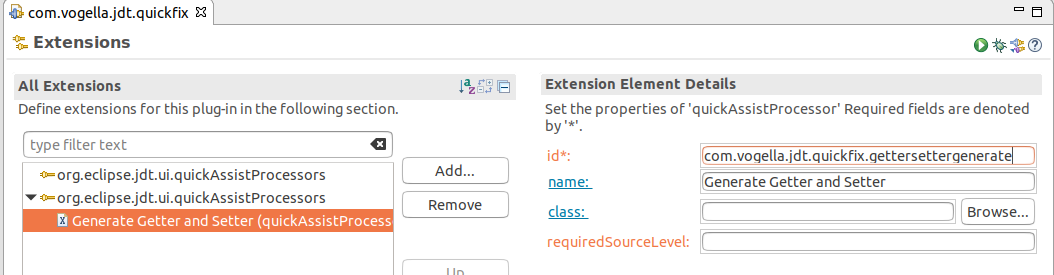
Open the MANIFEST.MF file and click the Extensions link on the Overview tab.
Press the Add… button in the Extensions tab of the plugin.xml editor.
Choose org.eclipse.jdt.ui.quickAssistProcessors.
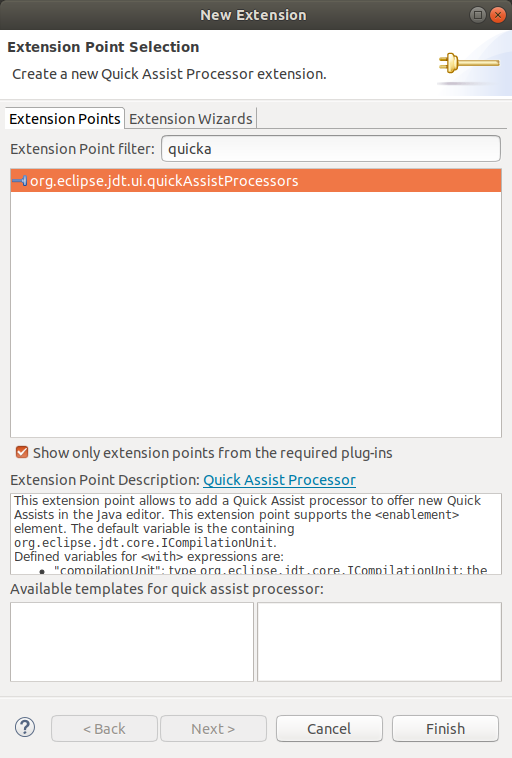
Press the Finish button.
Change the ID to com.vogella.jdt.quickfix.gettersettergenerate and the label to Generate Getter and Setter.
Click the class: link.
This opens the New Java Class wizard with the IQuickAssistProcessor interface already added.
Enter com.vogella.jdt.quickfix as package and QuickAssistsProcessorGetterSetter as name.
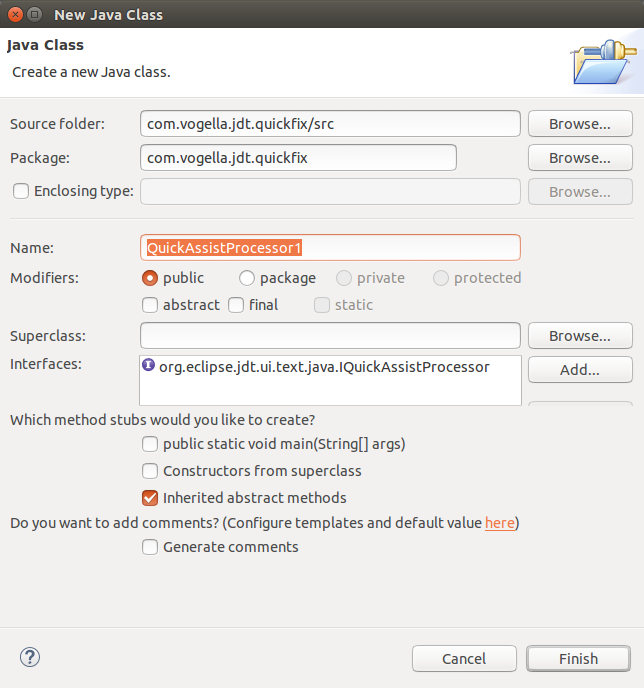
Press the Finish button.
9.3. Find out how to call the generate getter and setter action
Use the menu spy (Alt+Shift+F2) to find out which action is behind the menu entry. Your quick assist triggers this action.
9.4. Provide IJavaCompletionProposals with an IQuickAssistProcessor
The following IQuickAssistProcessor offers an IJavaCompletionProposal if the name of a class with fields is selected.
Applying the proposal opens the Generate Getters and Setters dialog.
package com.vogella.jdt.quickfix;

import org.eclipse.core.runtime.CoreException;
import org.eclipse.jdt.core.dom.SimpleName;
import org.eclipse.jdt.core.dom.TypeDeclaration;
import org.eclipse.jdt.internal.ui.javaeditor.CompilationUnitEditor;
import org.eclipse.jdt.internal.ui.text.correction.AssistContext;
import org.eclipse.jdt.internal.ui.text.java.AbstractJavaCompletionProposal;
import org.eclipse.jdt.ui.actions.AddGetterSetterAction;
import org.eclipse.jdt.ui.text.java.IInvocationContext;
import org.eclipse.jdt.ui.text.java.IJavaCompletionProposal;
import org.eclipse.jdt.ui.text.java.IProblemLocation;
import org.eclipse.jdt.ui.text.java.IQuickAssistProcessor;
import org.eclipse.jface.text.ITextViewer;
import org.eclipse.jface.viewers.StyledString;

@SuppressWarnings("restriction")
public class QuickAssistsProcessorGetterSetter implements IQuickAssistProcessor {

    @Override
    public boolean hasAssists(IInvocationContext context) throws CoreException {
        return findSelectedTypeWithFields(context) != null;
    }

    @Override
    public IJavaCompletionProposal[] getAssists(IInvocationContext context, IProblemLocation[] locations)
            throws CoreException {
        TypeDeclaration typeDeclaration = findSelectedTypeWithFields(context);
        if (typeDeclaration == null) {
            return null;
        }
        return new IJavaCompletionProposal[] {
                createGetterAndSetterProposal(context, typeDeclaration.getName().getIdentifier()) };
    }

    // returns the type whose name is selected, if it declares fields
    private TypeDeclaration findSelectedTypeWithFields(IInvocationContext context) {
        if (context.getCoveringNode() instanceof SimpleName name
                && name.getParent() instanceof TypeDeclaration typeDeclaration
                && typeDeclaration.getFields().length > 0) {
            return typeDeclaration;
        }
        return null;
    }

    private IJavaCompletionProposal createGetterAndSetterProposal(IInvocationContext context, String typeName) {
        return new AbstractJavaCompletionProposal() {
            @Override
            public StyledString getStyledDisplayString() {
                return new StyledString("Generate Getter and Setter for " + typeName);
            }

            @Override
            protected int getPatternMatchRule(String pattern, String string) {
                // no pattern matching, the proposal only opens the "Generate Getters and Setters..." dialog
                return -1;
            }

            @Override
            public void apply(ITextViewer viewer, char trigger, int stateMask, int offset) {
                if (context instanceof AssistContext assistContext
                        && assistContext.getEditor() instanceof CompilationUnitEditor editor) {
                    new AddGetterSetterAction(editor).run();
                }
            }
        };
    }
}
AssistContext, AbstractJavaCompletionProposal and CompilationUnitEditor are internal JDT classes, hence the @SuppressWarnings("restriction") annotation.
They are not API and may change in future Eclipse releases without notice.
|
9.5. Validate
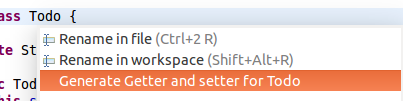
Start an Eclipse IDE with your plug-in. In the Java editor, select the name of a class which has fields and press Ctrl+1. The Generate Getter and Setter for <type name> quick assist is shown.
10. Exercise - Eclipse JDT quick fix - Finding predefined problem IDs
A quick fix can be used to resolve a problem in the code.
The IQuickFixProcessor is similar to an IQuickAssistProcessor, but only reacts to certain problems in an editor or in the Problems view.
The IProblem interface contains a predefined set of problem IDs.
Due to the huge number of problem IDs, it is sometimes hard to figure out which problem ID belongs to a particular problem.
In this exercise, you implement an IQuickFixProcessor to find the correct ID.
The previously created com.vogella.jdt.quickfix project is reused for this.
10.1. Using the org.eclipse.jdt.ui.quickFixProcessors extension point
Press the Add… button in the Extensions tab of the plugin.xml editor.
Add an extension for the org.eclipse.jdt.ui.quickFixProcessors extension point.
Press the Finish button.
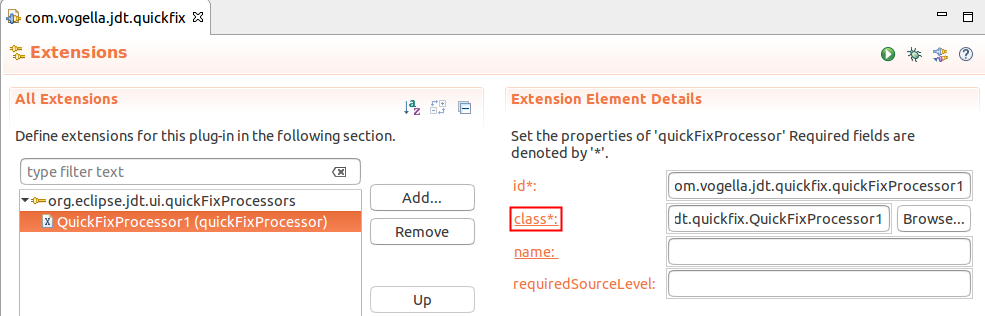
Click the class*: link to create the com.vogella.jdt.quickfix.ProblemIdQuickFixProcessor class.
Press the Finish button.
10.2. Provide IJavaCompletionProposals with an IQuickFixProcessor
As the processor does not provide any corrections, getCorrections() returns null.
Eclipse passes the problem ID to hasCorrections(), so this method prints it to the standard output.
package com.vogella.jdt.quickfix;

import org.eclipse.core.runtime.CoreException;
import org.eclipse.jdt.core.ICompilationUnit;
import org.eclipse.jdt.ui.text.java.IInvocationContext;
import org.eclipse.jdt.ui.text.java.IJavaCompletionProposal;
import org.eclipse.jdt.ui.text.java.IProblemLocation;
import org.eclipse.jdt.ui.text.java.IQuickFixProcessor;

public class ProblemIdQuickFixProcessor implements IQuickFixProcessor {

    @Override
    public boolean hasCorrections(ICompilationUnit unit, int problemId) {
        // print the ID to find out which problem to handle
        System.out.println(problemId);
        return false;
    }

    @Override
    public IJavaCompletionProposal[] getCorrections(IInvocationContext context, IProblemLocation[] locations)
            throws CoreException {
        return null;
    }
}
10.3. Optional: Print the name of the problem constant
The numeric ID still has to be looked up in IProblem.
Change hasCorrections() to print the names of the matching IProblem constants as well.
@Override
public boolean hasCorrections(ICompilationUnit unit, int problemId) {
    String names = Arrays.stream(IProblem.class.getFields())
            .filter(field -> field.getType() == int.class && readInt(field) == problemId)
            .map(Field::getName)
            .collect(Collectors.joining(", "));
    System.out.println(problemId + " " + names);
    return false;
}

private static int readInt(Field field) {
    try {
        return field.getInt(null);
    } catch (IllegalAccessException e) {
        return -1;
    }
}
This requires imports for java.lang.reflect.Field, java.util.Arrays, java.util.stream.Collectors and org.eclipse.jdt.core.compiler.IProblem.
10.4. Validate
Start an Eclipse IDE with your plug-in and press Ctrl+1 on a compiler warning or error in the Java editor.
This calls the hasCorrections() method of your ProblemIdQuickFixProcessor, which prints the problem ID to the Console view of the Eclipse IDE from which you started the runtime.
11. Exercise - Eclipse JDT clean up action
This exercise shows you how to provide an Eclipse clean up action which updates the year in the copyright header of a Java file. It is based on the Eclipse clean up guide.
Reuse the com.vogella.jdt.quickfix project.
Ensure the MANIFEST.MF contains the following dependencies.
-
org.eclipse.text (new)
-
org.eclipse.swt (new)
-
org.eclipse.ltk.core.refactoring (new)
-
org.eclipse.jdt.core.manipulation (new)
-
org.eclipse.jdt.ui
-
org.eclipse.jdt.core
-
org.eclipse.core.runtime
The clean up API (ICleanUp, ICleanUpFix, CleanUpOptions and related types) is located in the org.eclipse.jdt.ui.cleanup package of the org.eclipse.jdt.core.manipulation plug-in.
Only ICleanUpConfigurationUI is provided by org.eclipse.jdt.ui.
11.1. Provide an ICleanUpFix with ICleanUp
Create a new extension for the org.eclipse.jdt.ui.cleanUps extension point.
Right-click the extension and choose .
Set the id to com.vogella.jdt.quickfix.copyrightcleanup.
Afterwards, click class*: to create the corresponding Java class and call it CopyrightUpdaterCleanUp.
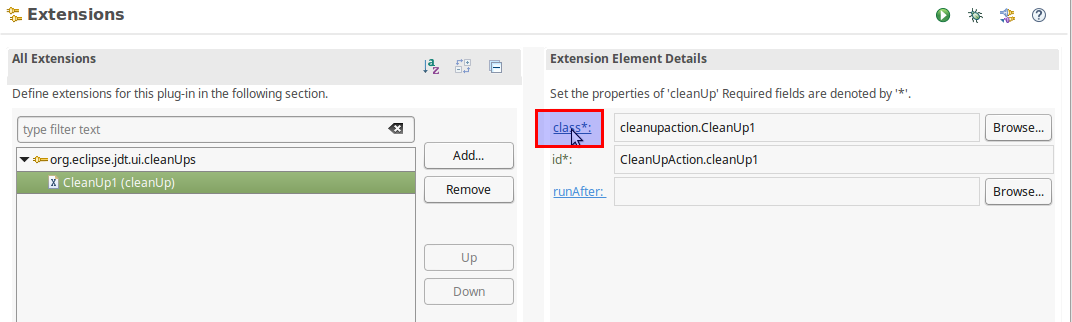
Implement the methods required by the ICleanUp interface.
The createFix method returns an ICleanUpFix which performs the actual change.
ICleanUpFix has only one abstract method, therefore you can implement it with a lambda expression.
The clean up only works on the source text, so it does not request an AST in getRequirements.
The complete class looks like this:
package com.vogella.jdt.quickfix;

import java.time.Year;
import java.util.regex.Matcher;
import java.util.regex.Pattern;

import org.eclipse.core.runtime.Assert;
import org.eclipse.core.runtime.CoreException;
import org.eclipse.core.runtime.IProgressMonitor;
import org.eclipse.jdt.core.ICompilationUnit;
import org.eclipse.jdt.core.IJavaProject;
import org.eclipse.jdt.core.refactoring.CompilationUnitChange;
import org.eclipse.jdt.ui.cleanup.CleanUpContext;
import org.eclipse.jdt.ui.cleanup.CleanUpOptions;
import org.eclipse.jdt.ui.cleanup.CleanUpRequirements;
import org.eclipse.jdt.ui.cleanup.ICleanUp;
import org.eclipse.jdt.ui.cleanup.ICleanUpFix;
import org.eclipse.ltk.core.refactoring.RefactoringStatus;
import org.eclipse.text.edits.ReplaceEdit;

public class CopyrightUpdaterCleanUp implements ICleanUp {

    public static final String CLEANUP_COPYRIGHTS_FLAG = "cleanup.update_copyrights";

    private static final Pattern COPYRIGHT = Pattern.compile("Copyright \\(c\\) (\\d{4})(?:, \\d{4})*");

    private CleanUpOptions options;

    @Override
    public void setOptions(CleanUpOptions options) {
        Assert.isLegal(options != null);
        this.options = options;
    }

    @Override
    public CleanUpRequirements getRequirements() {
        return new CleanUpRequirements(false, false, false, null);
    }

    @Override
    public String[] getStepDescriptions() {
        if (options.isEnabled(CLEANUP_COPYRIGHTS_FLAG)) {
            return new String[] { "Update Copyrights" };
        }
        return null;
    }

    @Override
    public RefactoringStatus checkPreConditions(IJavaProject project, ICompilationUnit[] compilationUnits,
            IProgressMonitor monitor) throws CoreException {
        return new RefactoringStatus();
    }

    @Override
    public ICleanUpFix createFix(CleanUpContext context) throws CoreException {
        if (!options.isEnabled(CLEANUP_COPYRIGHTS_FLAG)) {
            return null;
        }
        ICompilationUnit unit = context.getCompilationUnit();
        String source = unit.getSource();
        // only look into the header comment at the start of the file
        if (source == null || !source.startsWith("/*")) {
            return null;
        }
        Matcher matcher = COPYRIGHT.matcher(source);
        matcher.region(0, source.indexOf("*/") + 2);
        if (!matcher.find()) {
            return null;
        }
        String currentYear = String.valueOf(Year.now().getValue());
        String years = matcher.group();
        String lastYear = years.substring(years.length() - 4);
        if (lastYear.equals(currentYear)) {
            return null;
        }
        ReplaceEdit edit = new ReplaceEdit(matcher.start(), matcher.end() - matcher.start(),
                "Copyright (c) " + matcher.group(1) + ", " + currentYear);
        return monitor -> {
            CompilationUnitChange change = new CompilationUnitChange("Update Copyrights", unit);
            change.setEdit(edit);
            return change;
        };
    }

    @Override
    public RefactoringStatus checkPostConditions(IProgressMonitor monitor) throws CoreException {
        return new RefactoringStatus();
    }
}
11.2. Provide default options with an ICleanUpOptionsInitializer
If you want to provide default options for your clean up, you can do this by implementing the ICleanUpOptionsInitializer interface.
Add a new child element to the org.eclipse.jdt.ui.cleanUps extension via .
Set its cleanUpKind attribute to cleanUp.
Create the class by clicking the class*: link.
The setDefaultOptions method can provide preselected options.
package com.vogella.jdt.quickfix;

import org.eclipse.jdt.ui.cleanup.CleanUpOptions;
import org.eclipse.jdt.ui.cleanup.ICleanUpOptionsInitializer;

public class CopyrightOptionsInitializer implements ICleanUpOptionsInitializer {

    @Override
    public void setDefaultOptions(CleanUpOptions options) {
        options.setOption(CopyrightUpdaterCleanUp.CLEANUP_COPYRIGHTS_FLAG, CleanUpOptions.TRUE);
    }
}
11.3. Add the clean up to the UI with an ICleanUpConfigurationUI
Finally, add your new clean up action to the Eclipse UI.
This is done by implementing the ICleanUpConfigurationUI interface.
Add a new child element to the org.eclipse.jdt.ui.cleanUps extension via .
For cleanUpKind choose cleanUp and set name to Copyright.
The name is used as the label of the tab in the clean up profile dialog.
An implementation adding a new tab to the clean up configuration dialog can look like this:
package com.vogella.jdt.quickfix;

import java.time.Year;

import org.eclipse.jdt.ui.cleanup.CleanUpOptions;
import org.eclipse.jdt.ui.cleanup.ICleanUpConfigurationUI;
import org.eclipse.swt.SWT;
import org.eclipse.swt.events.SelectionListener;
import org.eclipse.swt.layout.GridData;
import org.eclipse.swt.layout.GridLayout;
import org.eclipse.swt.widgets.Button;
import org.eclipse.swt.widgets.Composite;
import org.eclipse.swt.widgets.Group;

public class CopyrightTabPage implements ICleanUpConfigurationUI {

    private CleanUpOptions options;

    @Override
    public void setOptions(CleanUpOptions options) {
        this.options = options;
    }

    @Override
    public Composite createContents(Composite parent) {
        Composite result = new Composite(parent, SWT.NONE);
        result.setLayoutData(new GridData(SWT.FILL, SWT.FILL, true, true));
        GridLayout layout = new GridLayout(1, false);
        layout.marginHeight = 0;
        layout.marginWidth = 0;
        result.setLayout(layout);

        Group group = new Group(result, SWT.NONE);
        group.setLayoutData(new GridData(SWT.FILL, SWT.FILL, true, false));
        group.setLayout(new GridLayout(1, false));
        group.setText("Copyright Update");

        Button updateCheckbox = new Button(group, SWT.CHECK);
        updateCheckbox.setLayoutData(new GridData(SWT.BEGINNING, SWT.CENTER, false, false));
        updateCheckbox.setText("Update the Copyrights");
        updateCheckbox.setSelection(options.isEnabled(CopyrightUpdaterCleanUp.CLEANUP_COPYRIGHTS_FLAG));
        updateCheckbox.addSelectionListener(SelectionListener.widgetSelectedAdapter(e -> options.setOption(
                CopyrightUpdaterCleanUp.CLEANUP_COPYRIGHTS_FLAG,
                updateCheckbox.getSelection() ? CleanUpOptions.TRUE : CleanUpOptions.FALSE)));

        return result;
    }

    @Override
    public int getCleanUpCount() {
        return 1;
    }

    @Override
    public int getSelectedCleanUpCount() {
        return options.isEnabled(CopyrightUpdaterCleanUp.CLEANUP_COPYRIGHTS_FLAG) ? 1 : 0;
    }

    @Override
    public String getPreview() {
        String years = options.isEnabled(CopyrightUpdaterCleanUp.CLEANUP_COPYRIGHTS_FLAG)
                ? "2005, " + Year.now().getValue()
                : "2005";
        return """
                /*******************************************************************************
                 * Copyright (c) %s vogella GmbH and others.
                 *
                 * This program and the accompanying materials
                 * are made available under the terms of the Eclipse Public License 2.0
                 * which accompanies this distribution, and is available at
                 * https://www.eclipse.org/legal/epl-2.0/
                 *
                 * SPDX-License-Identifier: EPL-2.0
                 *******************************************************************************/
                """.formatted(years);
    }
}
11.4. Validate
Start an Eclipse IDE with your plug-in.
Create a Java file which starts with a copyright header containing an older year, for example, Copyright (c) 2005 vogella GmbH and others.
Open the Clean Up preferences via , create a new profile and enable your clean up in its Copyright tab.
Run on the file and verify that the copyright year is updated.
A more complete example of a copyright clean up and save action is available at https://github.com/vogellacompany/saneclipse/tree/master/org.eclipse.jdt.copyrightsaveaction.
12. Exercise - Eclipse JDT save action
To add a save action instead of a clean up action, follow the Exercise - Eclipse JDT clean up action but choose saveAction as cleanUpKind in the cleanUpOptionsInitializer and cleanUpConfigurationUI elements.
To provide a fix as save action and as clean up action, add these two elements once for each kind.
13. Exercise: Adding Java templates via your plug-in
In this exercise, you add custom templates to JDT to make your life as a Java programmer easier.
13.1. Create project and add dependencies
Create a new plug-in named com.vogella.jdt.templates.
Add org.eclipse.ui.editors as a dependency to its MANIFEST.MF file.
13.2. Create templates
Create the following file named additional-templates.xml in the project folder.
<?xml version="1.0" encoding="UTF-8"?>
<templates>
    <template name="localvariable" description="Local Variable"
        id="org.eclipse.jdt.ui.templates.localvariable" context="java-statements"
        enabled="true" autoinsert="false">
        ${variabletype} ${myvar:newName(var)} = new ${variabletype}(${cursor});
    </template>

    <template name="string" description="String (empty)"
        id="org.eclipse.jdt.ui.templates.emptystring" context="java-statements"
        enabled="true" autoinsert="false">
        String ${myvar:newName(var)} = "";
    </template>

    <template name="arrayexample" description="Creates an Array with some example content"
        id="org.eclipse.jdt.ui.templates.arrayexample" context="java-statements"
        enabled="true" autoinsert="false">
        String[] ${myvar:newName(var)} =
        new String[] {"Windows 7", "macOS", "Debian", "Ubuntu", "Redhat",
        "Android", "iPhone", "Suse", "Windows XP", "Windows Mobile", "OS/2", "WebOS"};
    </template>

</templates>
Add an extension for the org.eclipse.ui.editors.templates extension point.
Right-click on your extension, select and point to the file.
The resulting entry in the plugin.xml file should look like the following.
   <extension
         point="org.eclipse.ui.editors.templates">
      <include
            file="additional-templates.xml">
      </include>
   </extension>
Add the additional-templates.xml file to the bin.includes of your build.properties file, otherwise it is missing in the exported plug-in.
13.3. Validate
Start your runtime Eclipse and open a Java file.
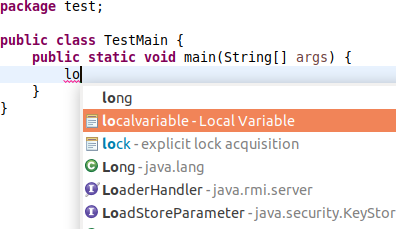
Type array in a method and press Ctrl+Space until the Template Proposals are shown.
Your arrayexample template is part of the list.
14. Optional exercise - Implementing your own code completion engine
You can define a custom completion engine, which gives you full control over its completion proposals. Your engine is included on the first page of code completion, and by pressing Ctrl+Space repeatedly, you can cycle to its specific page.
In this exercise, you review the code of an existing completion engine.
The Eclipse 4 tools are part of the eclipse.pde repository.
Clone it via git clone https://github.com/eclipse-pde/eclipse.pde.git and import the org.eclipse.e4.tools.jdt.templates project from the e4tools/bundles folder.
The org.eclipse.jdt.ui.javaCompletionProposalComputer extension in this plug-in defines a new completion engine.
<extension
      point="org.eclipse.jdt.ui.javaCompletionProposalComputer"
      id="e4BuilderCompletionProposalComputer">
   <javaCompletionProposalComputer
         activate="true"
         categoryId="org.eclipse.e4.tools.jdt.templates.e4ProposalCategory"
         class="org.eclipse.e4.internal.tools.jdt.templates.E4TemplateCompletionProposalComputer"
         requiresUIThread="false"/>
</extension>
Review the E4TemplateCompletionProposalComputer class and find out when this completion engine is active.
15. Eclipse JDT resources
15.4. vogella Java example code
If you need more assistance we offer Online Training and Onsite training as well as consulting