This tutorial describes the usage of the JDT API to create additional content assists, quick fixes and save actions. It explains the Abstract Syntax Tree (AST) and the Java model in Eclipse.

1. The Java model and the Java Abstract Syntax Tree
The Eclipse Java Development Tools (JDT) project provides APIs to access and manipulate Java source code. It provides access to the Java source code via:
-
the Java Model
-
the _Abstract Syntax Tree (AST)
1.1. Java Model
Each Java project is internally represented via a model. This model is a light-weight and fault tolerant representation of the Java project. It does not contain as many information as the AST but is fast to create. For example, the Outline view is using the Java model for its representation to be fast
The Java model is defined in the org.eclipse.jdt.core plug-in.
The Java model is represented as a tree structure that can be described via the following table.
| Project Element | Java Model element | Description |
|---|---|---|
Java project |
IJavaProject |
The Java project that contains all other objects. |
src folder / bin folder / or external library |
IPackageFragmentRoot |
Hold source or binary files, can be a folder or a library (zip / jar file ) |
Each package |
IPackageFragment |
Each package is below the IPackageFragmentRoot, sub-packages are not leaves of the package, they are listed directly under IPackageFragmentRoot |
Java Source File |
ICompilationUnit |
The Source file is always below the package node |
Types / Fields / Methods |
IType / IField / IMethod |
Types, fields and methods |
1.2. Abstract Syntax Tree (AST)
The AST is a detailed tree representation of the Java source code. The AST defines an API to modify, create, read and delete source code.
The main package for the AST is the org.eclipse.jdt.core.dom package and is located in the org.eclipse.jdt.core plug-in.
Each Java source element is represented as a subclass of the ASTNode class.
Each specific AST node provides specific information about the object it represents.
For example, you have:
-
MethodDeclaration- for methods -
VariableDeclarationFragment- for variable declarations -
SimpleName- for any string which is not a Java keyword, a Boolean literal ( true or false) or the null literal
The AST is typically created based on a ICompilationUnit from the Java Model.
The process of working the with AST is typically the following:
-
Provide some Java source code to parse
-
Java source code is parsed via
org.eclipse.jdt.core.dom.ASTParserreturning an AST -
If you want to modify the Java source code the AST is manipulated
-
The changes are written back to the source code from the AST via the
IDocumentinterface
To find an AST Node you could check of levels in the AST.
A better solution is to use the visitor pattern via the ASTVisitor class.
2. Prerequisites
This article assume that you are familiar with Eclipse plug-in development. See Eclipse plug-in development tutorial for an introduction.
3. Example: Accessing your Java projects with the JDT Java model
The following example creates a command that will read the project of the workspace, get all package and Java source files for these projects and read all methods for them by using the JDT Java Model API.
Create a plug-in project called com.vogella.jdt.infos.
Choose "Plug-in with an Eclipse 4 handler" as a template.
Add the following dependencies to your plug-in:
-
org.eclipse.core.resources
-
org.eclipse.jdt
-
org.eclipse.jdt.core
-
org.eclipse.core.runtime
-
org.eclipse.jdt.ui
-
org.eclipse.jface.text
Change the handler to the following.
package de.vogella.jdt.infos.handlers;

import org.eclipse.core.commands.AbstractHandler;
import org.eclipse.core.commands.ExecutionEvent;
import org.eclipse.core.commands.ExecutionException;
import org.eclipse.core.resources.IProject;
import org.eclipse.core.resources.IWorkspace;
import org.eclipse.core.resources.IWorkspaceRoot;
import org.eclipse.core.resources.ResourcesPlugin;
import org.eclipse.core.runtime.CoreException;
import org.eclipse.jdt.core.ICompilationUnit;
import org.eclipse.jdt.core.IJavaProject;
import org.eclipse.jdt.core.IMethod;
import org.eclipse.jdt.core.IPackageFragment;
import org.eclipse.jdt.core.IPackageFragmentRoot;
import org.eclipse.jdt.core.IType;
import org.eclipse.jdt.core.JavaCore;
import org.eclipse.jdt.core.JavaModelException;
import org.eclipse.jface.text.Document;

public class SampleHandler  {

    public Object execute(ExecutionEvent event) throws ExecutionException {
        // Get the root of the workspace
        IWorkspace workspace = ResourcesPlugin.getWorkspace();
        IWorkspaceRoot root = workspace.getRoot();
        // Get all projects in the workspace
        IProject[] projects = root.getProjects();
        // Loop over all projects
        for (IProject project : projects) {
            try {
                printProjectInfo(project);
            } catch (CoreException e) {
                e.printStackTrace();
            }
        }
        return null;
    }

    private void printProjectInfo(IProject project) throws CoreException,
            JavaModelException {
        System.out.println("Working in project " + project.getName());
        // check if we have a Java project
        if (project.isNatureEnabled("org.eclipse.jdt.core.javanature")) {
            IJavaProject javaProject = JavaCore.create(project);
            printPackageInfos(javaProject);
        }
    }

    private void printPackageInfos(IJavaProject javaProject)
            throws JavaModelException {
        IPackageFragment[] packages = javaProject.getPackageFragments();
        for (IPackageFragment mypackage : packages) {
            // Package fragments include all packages in the
            // classpath
            // We will only look at the package from the source
            // folder
            // K_BINARY would include included JARS, e.g.
            // rt.jar
            if (mypackage.getKind() == IPackageFragmentRoot.K_SOURCE) {
                System.out.println("Package " + mypackage.getElementName());
                printICompilationUnitInfo(mypackage);

            }

        }
    }

    private void printICompilationUnitInfo(IPackageFragment mypackage)
            throws JavaModelException {
        for (ICompilationUnit unit : mypackage.getCompilationUnits()) {
            printCompilationUnitDetails(unit);

        }
    }

    private void printIMethods(ICompilationUnit unit) throws JavaModelException {
        IType[] allTypes = unit.getAllTypes();
        for (IType type : allTypes) {
            printIMethodDetails(type);
        }
    }

    private void printCompilationUnitDetails(ICompilationUnit unit)
            throws JavaModelException {
        System.out.println("Source file " + unit.getElementName());
        Document doc = new Document(unit.getSource());
        System.out.println("Has number of lines: " + doc.getNumberOfLines());
        printIMethods(unit);
    }

    private void printIMethodDetails(IType type) throws JavaModelException {
        IMethod[] methods = type.getMethods();
        for (IMethod method : methods) {

            System.out.println("Method name " + method.getElementName());
            System.out.println("Signature " + method.getSignature());
            System.out.println("Return Type " + method.getReturnType());

        }
    }
}
Start your plug-in. Create a few projects in your new workspace. Create a few packages for them and a few Java files. Press the menu entry that points to your sample command.
You should see the projects, package and source files listed in the Console view of the calling workbench.
4. Modifying projects
4.1. Creating new Java elements via the Java model
The following will create a command that will create a new package to existing (and open) Java projects that have the same name as the Java project. For example, if you have a project de.vogella.test in your workspace without any package this command will create the package de.vogella.test in this project.
Create a new plug-in project de.vogella.jdt.newelements.
Add a new command de.vogella.jdt.newelements.AddPackage and put it into the menu.
Create the following handler for this command.
package de.vogella.jdt.newelements.handler;

import org.eclipse.core.commands.AbstractHandler;
import org.eclipse.core.commands.ExecutionEvent;
import org.eclipse.core.commands.ExecutionException;
import org.eclipse.core.resources.IFolder;
import org.eclipse.core.resources.IProject;
import org.eclipse.core.resources.IWorkspace;
import org.eclipse.core.resources.IWorkspaceRoot;
import org.eclipse.core.resources.ResourcesPlugin;
import org.eclipse.core.runtime.CoreException;
import org.eclipse.jdt.core.IJavaProject;
import org.eclipse.jdt.core.IPackageFragment;
import org.eclipse.jdt.core.IPackageFragmentRoot;
import org.eclipse.jdt.core.JavaCore;
import org.eclipse.jdt.core.JavaModelException;

public class AddPackage extends AbstractHandler {

    @Override
    public Object execute(ExecutionEvent event) throws ExecutionException {
        IWorkspace workspace = ResourcesPlugin.getWorkspace();
        IWorkspaceRoot root = workspace.getRoot();
        // Get all projects in the workspace
        IProject[] projects = root.getProjects();
        // Loop over all projects
        for (IProject project : projects) {
            try {
                // only work on open projects with the Java nature
                if (project.isOpen()
                        & project.isNatureEnabled(JavaCore.NATURE_ID)) {
                    createPackage(project);
                }
            } catch (CoreException e) {
                e.printStackTrace();
        }
        return null;
    }

    private void createPackage(IProject project) throws JavaModelException {
        IJavaProject javaProject = JavaCore.create(project);
        IFolder folder = project.getFolder("src");
        // folder.create(true, true, null);
        IPackageFragmentRoot srcFolder = javaProject
                .getPackageFragmentRoot(folder);
        IPackageFragment fragment = srcFolder.createPackageFragment(
                project.getName(), true, null);
    }
}| This will add the package with the Java project name to all open projects in the workspace. Make you sure you want this. You could add the action to the context menu of the package explorer and apply it only for the selected project. You can learn how to do this in Extending the Package Explorer. |
An example can be found on the source page in project de.vogella.jdt.packageexplorer. Have a look at the command handler AddPackage.java.
4.2. Change the classpath
You can modify the classpath of your project. The following example handler is contained in project de.vogella.jdt.addclasspath. It will add JUnit4 to the classpath of all projects in the workspace.
package de.vogella.jdt.addclasspath.handlers;

import org.eclipse.core.resources.IProject;
import org.eclipse.core.resources.IWorkspace;
import org.eclipse.core.resources.IWorkspaceRoot;
import org.eclipse.core.resources.ResourcesPlugin;
import org.eclipse.core.runtime.CoreException;
import org.eclipse.core.runtime.Path;
import org.eclipse.jdt.core.IClasspathEntry;
import org.eclipse.jdt.core.IJavaProject;
import org.eclipse.jdt.core.JavaCore;
import org.eclipse.e4.core.di.annotations.Execute;

public class GlobalModifyClasspathHandler {

    private static final String JDT_NATURE = "org.eclipse.jdt.core.javanature";

    @Execute
    public void execute() {
        IWorkspace workspace = ResourcesPlugin.getWorkspace();
        IWorkspaceRoot root = workspace.getRoot();
        // Get all projects in the workspace
        IProject[] projects = root.getProjects();
        // Loop over all projects
        for (IProject project : projects) {
            try {
                // only work on open projects with the Java nature
                if (project.isOpen() && project.isNatureEnabled(JDT_NATURE)) {
                    changeClassPath(project);
                }
            } catch (CoreException e) {
                e.printStackTrace();
            }
        }
    }

    private void changeClasspath(IProject project) throws JavaModelException {
        IJavaProject javaProject = JavaCore.create(project);
        IClasspathEntry[] entries = javaProject.getRawClasspath();
        IClasspathEntry[] newEntries = new IClasspathEntry[entries.length + 1];

        System.arraycopy(entries, 0, newEntries, 0, entries.length);

        // add a new entry using the path to the container
        Path junitPath = new Path(
                "org.eclipse.jdt.junit.JUNIT_CONTAINER/4");
        IClasspathEntry junitEntry = JavaCore
                .newContainerEntry(junitPath);
        newEntries[entries.length] = JavaCore
                .newContainerEntry(junitEntry.getPath());
        javaProject.setRawClasspath(newEntries, null);
    }


}
The next example shows a handler, which adds Mockito to the classpath of a selected IJavaElement 's java project.
package de.vogella.jdt.addclasspath.handlers;

import jakarta.inject.Named;

import org.eclipse.core.runtime.IProgressMonitor;
import org.eclipse.core.runtime.IStatus;
import org.eclipse.core.runtime.Path;
import org.eclipse.core.runtime.Status;
import org.eclipse.core.runtime.jobs.Job;
import org.eclipse.e4.core.di.annotations.CanExecute;
import org.eclipse.e4.core.di.annotations.Execute;
import org.eclipse.e4.ui.services.IServiceConstants;
import org.eclipse.jdt.core.IClasspathEntry;
import org.eclipse.jdt.core.IJavaElement;
import org.eclipse.jdt.core.IJavaProject;
import org.eclipse.jdt.core.JavaCore;
import org.eclipse.jdt.core.JavaModelException;
import org.eclipse.jface.viewers.IStructuredSelection;
import org.osgi.framework.Bundle;
import org.osgi.framework.FrameworkUtil;

public class ModifyClasspathHandler {

    @Execute
    public void execute(@Named(IServiceConstants.ACTIVE_SELECTION) IStructuredSelection selection)
            throws JavaModelException {
        Object firstElement = selection.getFirstElement();
        if (firstElement instanceof IJavaElement) {

            // Get the selected IJavaProject
            final IJavaElement javaElement = (IJavaElement) firstElement;
            Job job = Job.create("Setting the classpath", monitor -> {
                IJavaProject javaProject = javaElement.getJavaProject();

                // Test the best and get the IClasspathEntry for
                // mockito-core
                Path path = new Path(
                        "/home/simon/.m2/repository/org/mockito/mockito-core/1.8.4/mockito-core-1.8.4.jar");
                IClasspathEntry libraryEntry = JavaCore.newLibraryEntry(path, null, null);

                try {
                    // add the classpath to mockito-core for the java
                    // project
                    javaProject.setRawClasspath(new IClasspathEntry[] { libraryEntry }, monitor);
                } catch (JavaModelException e) {
                    Bundle bundle = FrameworkUtil.getBundle(getClass());
                    return new Status(Status.ERROR, bundle.getSymbolicName(),
                            "Could not set classpath to Java project: " + javaProject.getElementName(), e);
                }
                return Status.OK_STATUS;
            });

            job.schedule();
        }
    }

    @CanExecute
    public boolean canExecute(@Named(IServiceConstants.ACTIVE_SELECTION) IStructuredSelection selection) {
        return selection.getFirstElement() instanceof IJavaElement;
    }

}
5. Using the AST
The following code creates an AST for each source file in your workspace. Afterwards, it prints out the name and the return type of each method using the AST.
Create a new plug-in project de.vogella.jdt.astsimple using the "Hello world" template.
Maintain the following plug-in dependencies.
Manifest-Version: 1.0
Bundle-ManifestVersion: 2
Bundle-Name: Astsimple Plug-in
Bundle-SymbolicName: de.vogella.jdt.astsimple;singleton:=true
Bundle-Version: 1.0.0
Bundle-RequiredExecutionEnvironment: JavaSE-21
Require-Bundle: org.eclipse.core.runtime;bundle-version="3.4.0",
 org.eclipse.ui;bundle-version="3.4.2",
 org.eclipse.jdt.core;bundle-version="3.4.4",
 org.eclipse.core.resources;bundle-version="3.4.2",
 org.eclipse.jdt.ui;bundle-version="3.4.2"
To get information about the AST you can use the Visitor Pattern. This allows you to add a visitor to the AST for a specific element. In this visitor can you capture information about the object and return it after processing the AST. Create for this the following class.
package de.vogella.jdt.astsimple.handler;

import java.util.ArrayList;
import java.util.List;

import org.eclipse.jdt.core.dom.ASTVisitor;
import org.eclipse.jdt.core.dom.MethodDeclaration;

public class MethodVisitor extends ASTVisitor {
    List<MethodDeclaration> methods = new ArrayList<>();

    @Override
    public boolean visit(MethodDeclaration node) {
        methods.add(node);
        return super.visit(node);
    }

    public List<MethodDeclaration> getMethods() {
        return methods;
    }
}
Add a new command de.vogella.jdt.astsimple.GetInfo and put it into the menu.
Create the following handler for this command.
package de.vogella.jdt.astsimple.handler;

import org.eclipse.core.commands.AbstractHandler;
import org.eclipse.core.commands.ExecutionEvent;
import org.eclipse.core.commands.ExecutionException;
import org.eclipse.core.resources.IProject;
import org.eclipse.core.resources.IWorkspace;
import org.eclipse.core.resources.IWorkspaceRoot;
import org.eclipse.core.resources.ResourcesPlugin;
import org.eclipse.core.runtime.CoreException;
import org.eclipse.jdt.core.ICompilationUnit;
import org.eclipse.jdt.core.IPackageFragment;
import org.eclipse.jdt.core.IPackageFragmentRoot;
import org.eclipse.jdt.core.JavaCore;
import org.eclipse.jdt.core.JavaModelException;
import org.eclipse.jdt.core.dom.AST;
import org.eclipse.jdt.core.dom.ASTParser;
import org.eclipse.jdt.core.dom.CompilationUnit;
import org.eclipse.jdt.core.dom.MethodDeclaration;

public class GetInfo extends AbstractHandler {

    private static final String JDT_NATURE = "org.eclipse.jdt.core.javanature";

    @Override
    public Object execute(ExecutionEvent event) throws ExecutionException {
        IWorkspace workspace = ResourcesPlugin.getWorkspace();
        IWorkspaceRoot root = workspace.getRoot();
        // Get all projects in the workspace
        IProject[] projects = root.getProjects();
        // Loop over all projects
        for (IProject project : projects) {
            try {
                if (project.isNatureEnabled(JDT_NATURE)) {
                    analyseMethods(project);
                }
            } catch (CoreException e) {
                e.printStackTrace();
            }
        }
        return null;
    }

    private void analyseMethods(IProject project) throws JavaModelException {
        IPackageFragment[] packages = JavaCore.create(project).getPackageFragments();
        // parse(JavaCore.create(project));
        for (IPackageFragment mypackage : packages) {
            if (mypackage.getKind() == IPackageFragmentRoot.K_SOURCE) {
                createAST(mypackage);
            }

        }
    }

    private void createAST(IPackageFragment mypackage) throws JavaModelException {
        for (ICompilationUnit unit : mypackage.getCompilationUnits()) {
            // now create the AST for the ICompilationUnits
            CompilationUnit parse = parse(unit);
            MethodVisitor visitor = new MethodVisitor();
            parse.accept(visitor);

            for (MethodDeclaration method : visitor.getMethods()) {
                System.out.print("Method name: " + method.getName()
                        + " Return type: " + method.getReturnType2());
            }

        }
    }

    /**
     * Reads a ICompilationUnit and creates the AST DOM for manipulating the
     * Java source file
     *
     * @param unit
     * @return
     */

    private static CompilationUnit parse(ICompilationUnit unit) {
        ASTParser parser = ASTParser.newParser(AST.JLS3);
        parser.setKind(ASTParser.K_COMPILATION_UNIT);
        parser.setSource(unit);
        parser.setResolveBindings(true);
        return (CompilationUnit) parser.createAST(null); // parse
    }
}
Add the command to your menu. Run your new plugin, create a new Java project and select the command. It should print out the information about your methods in the IDE from which you started your new plugin.
5.1. Adding a "Hello, world" statement using the AST
The next example shows you how to add a "Hello, world" statement to some source code using the AST. We are using an ASTVisitor to visit the MethodDeclaration and make our change.
String source = String.join("\n",
        "public class HelloWorld {",
        "    public static void main(String[] args) {",
                  // Insert the following statement.
                  // System.out.println("Hello, World");
        "    }",
        "}");

ASTParser parser = ASTParser.newParser(AST.JLS8);
parser.setSource(source.toCharArray());
parser.setKind(ASTParser.K_COMPILATION_UNIT);

CompilationUnit unit = (CompilationUnit) parser.createAST(new NullProgressMonitor());

unit.accept(new ASTVisitor() {

    @SuppressWarnings("unchecked")
    public boolean visit(MethodDeclaration node) {
        AST ast = node.getAST();

        MethodInvocation methodInvocation = ast.newMethodInvocation();

        // System.out.println("Hello, World")
        QualifiedName qName =
                   ast.newQualifiedName(
                            ast.newSimpleName("System"),
                            ast.newSimpleName("out"));
        methodInvocation.setExpression(qName);
        methodInvocation.setName(ast.newSimpleName("println"));

        StringLiteral literal = ast.newStringLiteral();
        literal.setLiteralValue("Hello, World");
        methodInvocation.arguments().add(literal);

        // Append the statement
        node.getBody().statements().add(ast.newExpressionStatement(methodInvocation));

        return super.visit(node);
    }
});
5.1.1. Finding all elements of type MethodDeclaration
Sometimes we do not want to put our behavior inside the ASTVisitor. The next example shows a common pattern of using an ASTVisitor to build a map of all MethodDeclarations.
public static final class MethodDeclarationFinder extends ASTVisitor {
  private final List <MethodDeclaration> methods = new ArrayList <> ();

  public static List<MethodDeclaration> perform(ASTNode node) {
      MethodDeclarationFinder finder = new MethodDeclarationFinder();
      node.accept(finder);
      return finder.getMethods();
  }

  @Override
  public boolean visit (final MethodDeclaration method) {
    methods.add (method);
    return super.visit(method);
  }

  /**
   * @return an immutable list view of the methods discovered by this visitor
   */
  public List <MethodDeclaration> getMethods() {
    return Collections.unmodifiableList(methods);
  }
}
5.1.2. Add "Hello, world" statement with JDT using MethodDeclarationFinder
Using the MethodDeclarationFinder from the last snippet we can rewrite our previous "Hello, world" example:
String source = String.join("\n",
        "public class HelloWorld {",
        "    public static void main(String[] args) {",
                  // Insert the following statement.
                  // System.out.println("Hello, World");
        "    }",
        "}");

ASTParser parser = ASTParser.newParser(AST.JLS8);
parser.setSource(source.toCharArray());
parser.setKind(ASTParser.K_COMPILATION_UNIT);

CompilationUnit unit = (CompilationUnit) parser.createAST(new NullProgressMonitor());
AST ast = unit.getAST();

List<MethodDeclaration> methodDeclarations = MethodDeclarationFinder.perform(unit);
for (MethodDeclaration methodDeclaration : methodDeclarations) {
    MethodInvocation methodInvocation = ast.newMethodInvocation();

    // System.out.println("Hello, World")
    QualifiedName qName = ast.newQualifiedName(ast.newSimpleName("System"), ast.newSimpleName("out"));
    methodInvocation.setExpression(qName);
    methodInvocation.setName(ast.newSimpleName("println"));

    StringLiteral literal = ast.newStringLiteral();
    literal.setLiteralValue("Hello, World");
    methodInvocation.arguments().add(literal);

    // Append the statement
    methodDeclaration.getBody().statements().add(ast.newExpressionStatement(methodInvocation));
}
6. Exercise - Using the JDT AST view
The JDT project provides an Eclipse plug-in called AST View. AST View can visualize the AST of a Java source file.
6.1. Install the AST view
Try to open it via the Ctrl+3 shortcut and by typing "Abstract Syntax Tree" into the search field.

If it is not installed, install the plug-in from the JDT update page:
Start the AST view with the keybind Alt+Shift+Q, A or via the menu entry at .
6.2. Use the AST view
Now open the Java file that you want to analyze. Press Show AST of active editor to load the AST. By double-clicking on a specific entry you jump to the correlating line in the source code.
7. Using JDT to modify existing source code
7.1. Creating a CompilationUnit (AST) from file in workspace
        IWorkspace workspace = ResourcesPlugin.getWorkspace();
        IPath path = Path.fromOSString("/some/path");
        IFile file = workspace.getRoot().getFile(path);
        CompilationUnit compilationUnit =  (CompilationUnit) JavaCore.create(file);
        ICompilationUnit element =  JavaCore.createCompilationUnitFrom(file);
        ASTParser parser = ASTParser.newParser(AST.JLS8);
        parser.setResolveBindings(true);
        parser.setKind(ASTParser.K_COMPILATION_UNIT);
        parser.setBindingsRecovery(true);
        parser.setSource(element);
        CompilationUnit astRoot = (CompilationUnit) parser.createAST(null);
7.2. Creating CompilationUnit (AST) from file on disk
        ASTParser parser = ASTParser.newParser(AST.JLS8);
        parser.setResolveBindings(true);
        parser.setStatementsRecovery(true);
        parser.setBindingsRecovery(true);
        parser.setKind(ASTParser.K_COMPILATION_UNIT);
        File resource = new File("./tests/resources/Snippet.java");
        java.nio.file.Path sourcePath = Paths.get(resource.toURI());
        String sourceString = new String(Files.readAllBytes(sourcePath));
        char[] source = sourceString.toCharArray();
        parser.setSource(source);
        parser.setUnitName(sourcePath.toAbsolutePath().toString());
        CompilationUnit astRoot = (CompilationUnit) parser.createAST(null);
7.3. Adding Imports with ASTRewrite
         Document document = new Document("import java.util.List;\nclass X {}\n");
         ASTParser parser = ASTParser.newParser(AST.JLS8);
         parser.setSource(document.get().toCharArray());
         CompilationUnit cu = (CompilationUnit) parser.createAST(null);
         AST ast = cu.getAST();
         ImportDeclaration id = ast.newImportDeclaration();
         id.setName(ast.newName(new String[] {"java", "util", "Set"}));
         ASTRewrite rewriter = ASTRewrite.create(ast);
         ListRewrite lrw = rewriter.getListRewrite(cu, CompilationUnit.IMPORTS_PROPERTY);
         lrw.insertLast(id, null);
         TextEdit edits = rewriter.rewriteAST(document, null);
         edits.apply(document);
         assert "import java.util.List;\nimport java.util.Set;\nclass X {}\n".equals(document.get());
7.4. Writing recorded changes to disk
This example shows how to save the recorded changes in an ImportRewrite and ASTRewrite object.
    protected void saveChanges(ICompilationUnit cu, IProgressMonitor monitor, final ASTRewrite rewriter,
            ImportRewrite importRewrite) throws CoreException, JavaModelException, BadLocationException {
        TextEdit importEdits = importRewrite.rewriteImports(monitor);
        TextEdit edits = rewriter.rewriteAST();
        importEdits.addChild(edits);

        // apply the text edits to the compilation unit
        Document document = new Document(cu.getSource());
        importEdits.apply(document);

        // save the compilation unit
        cu.getBuffer().setContents(document.get());
        cu.save(monitor, true);
    }
7.5. Getting an element at a certain Line Number
protected IMember getIMemberAt(IType type, int lineNumber) throws Exception {
    IMember member = null;
    if (type != null) {
        IJavaElement sourceElement = null;
        String source = null;
        if (type.isBinary()) {
            IClassFile classFile = type.getClassFile();
            source = classFile.getSource();
            sourceElement = classFile;
        } else {
            ICompilationUnit unit = type.getCompilationUnit();
            source = unit.getSource();
            sourceElement = unit;
        }
        // translate line number to offset
        if (source != null) {
            Document document = new Document(source);
            IRegion region = document.getLineInformation(lineNumber);
            if (sourceElement instanceof ICompilationUnit) {
                member = (IMember) ((ICompilationUnit)sourceElement).getElementAt(region.getOffset());
            } else {
                member = (IMember) ((IClassFile)sourceElement).getElementAt(region.getOffset());
            }
        }
    }
    return member;
}
8. Using extension points to define JDT templates
You can define your templates within an Eclipse plug-in.
This makes it easier to distribute your templates to other developers.
Providing a template can be done via an extension to the org.eclipse.ui.editors.templates extension point.
The templates are activated for a certain scope. For example, you have templates for statements within a method or templates for new methods.
| Statement | Description |
|---|---|
java-statements |
Templates that are available within a method |
java-members |
Allow defining templates for members, e.g., new methods |
10. Developing custom Eclipse quick fixes and quick assist for Java
10.1. Using quick fixes and quick assists
The Eclipse IDE provides two differect means to enhance your Java code.
-
quick fixes - allow to solve problems with your code base
-
quick assists - allow to enhance your code base
You can create custom quick fixes and quick assistance via additional plug-ins. Such plug-ins require the following plug-ins as a dependency in their manifest.
-
org.eclipse.jdt.ui
-
org.eclipse.jdt.core
-
org.eclipse.core.runtime
-
org.eclipse.jface
-
org.eclipse.jface.text
10.2. Quick assist processors
Quick Assists Processors provide the opportunity to provide context sensitive refactorings and assistance in an editor, e.g., the Java editor.
To provide quick assistance the org.eclipse.jdt.ui.quickAssistProcessors extension point has to be used.
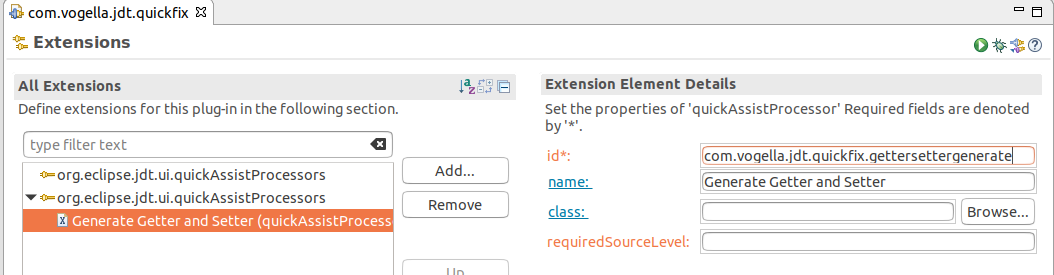
The referenced class in the extension point has to be an instance of IQuickAssistProcessor, which specifies the boolean hasAssists(IInvocationContext context) and IJavaCompletionProposal[] getAssists(IInvocationContext context, IProblemLocation[] locations) methods.
The hasAssists method specifies whether the quick assist is appropriate and the quick assist should be offered to the user.
The getAssists method returns an array of IJavaCompletionProposal objects that can apply refactorings and changes to the code.
10.3. Quick fix processors
You can create custom quick fixes via the org.eclipse.jdt.ui.quickFixProcessors extension point from the org.eclipse.jdt.ui plug-in.
A quick fix is intended to be offered in the context of problems.
Problems in this context mean warnings or errors produced by the compiler or by infrastructure that is using the compiler.
The class that is referred by the extension points must implement the IQuickFixProcessor interface.
This defines the hasCorrections() and getCorrections() methods.
The IProblem interface defines the possible problems as constants in the interface.
This interface is not intended to be implemented or extended by clients.
10.4. Cleanup actions
Cleanup actions are provided via extensions for the org.eclipse.jdt.ui.cleanUps extension point.
This extension requires an implementation of the ICleanUp interface.
The getRequirements returns CleanUpRequirements.
This tells the framework the requirements needed for its execution.
The returned value can demand an AST or the changed regions since the last save to be provided by the CleanUpContext.
The requirements can depend on the options passed through setOptions(CleanUpOptions).
@Override
public CleanUpRequirements getRequirements() {
    boolean changedRegionsRequired = false;
    Map<String, String> compilerOptions = null;
    boolean isUpdateCopyrights = options.isEnabled(CLEANUP_COPYRIGHTS_FLAG);
    return new CleanUpRequirements(isUpdateCopyrights, isUpdateCopyrights, changedRegionsRequired, compilerOptions);
}
With getStepDescriptions we provide a human readable description of our action.
It gets displayed in the overview of the selected clean up actions.

@Override
public String[] getStepDescriptions() {
    if (options.isEnabled(CLEANUP_COPYRIGHTS_FLAG)) {
        return new String[] {"Update Copyrights"};//$NON-NLS-1$
    }
    return null;
}
The options that get set in the preference dialog get passed in via the setOptions method.
@Override
public void setOptions(CleanUpOptions options) {
    Assert.isLegal(options != null);
    Assert.isTrue(options == null);
    this.options = options;
}
The save action only provides a change if the preconditions are met.
The pre condition check fails if the RefactoringStatus contains a RefactoringStatusEntry with a fatal severity.
@Override
public RefactoringStatus checkPreConditions(IJavaProject project, ICompilationUnit[] compilationUnits, IProgressMonitor monitor) throws CoreException {
    if (options.isEnabled(CLEANUP_COPYRIGHTS_FLAG)) {
        status = new RefactoringStatus();
    }
    return new RefactoringStatus();
}
The checkPostConditions method gets called after the fix was applied.
If the RefactoringStatus contains a RefactoringStatusEntry with a severity of RefactoringStatus.WARNING or higher the action will fail.
@Override
public RefactoringStatus checkPostConditions(IProgressMonitor monitor) throws CoreException {
    try {
        if (status == null || status.isOK()) {
            return new RefactoringStatus();
        } else {
            return status;
        }
    } finally {
        status = null;
    }
}
The createFix method must return an ICleanUpFix that does provide the actual fix.
The method is supposed to return null if there is nothing found to be fixed.
@Override
public ICleanUpFix createFix(CleanUpContext context) throws CoreException {
    CompilationUnit compilationUnit = context.getAST();
    if (compilationUnit == null) {
        return null;
    }

    return CopyrightsFix.createCleanUp(compilationUnit, options.isEnabled(CLEANUP_COPYRIGHTS_FLAG));
}
11. Exercise - Eclipse JDT Quick Assist
In this exercise a custom JDT quick assist is created to allow you to create getter and setters from the class definition. The new quick assists opens the Generate Getters and Setters… dialog which is available via the Source menu.
11.1. Creating a Plug-in project and adding dependencies
Create an empty Plug-in project called com.vogella.jdt.quickfix and add the following dependencies:
-
org.eclipse.jdt.ui
-
org.eclipse.jdt.core
-
org.eclipse.core.runtime
-
org.eclipse.jface
-
org.eclipse.jface.text
-
org.eclipse.ui
11.2. Using the org.eclipse.jdt.ui.quickAssistProcessors extension point
Open the MANIFEST.MF file and click on Extensions link from the Overview tab.
Press the Add button in the Extensions tab of the plugin.xml editor.
Choose org.eclipse.jdt.ui.quickAssistProcessors.
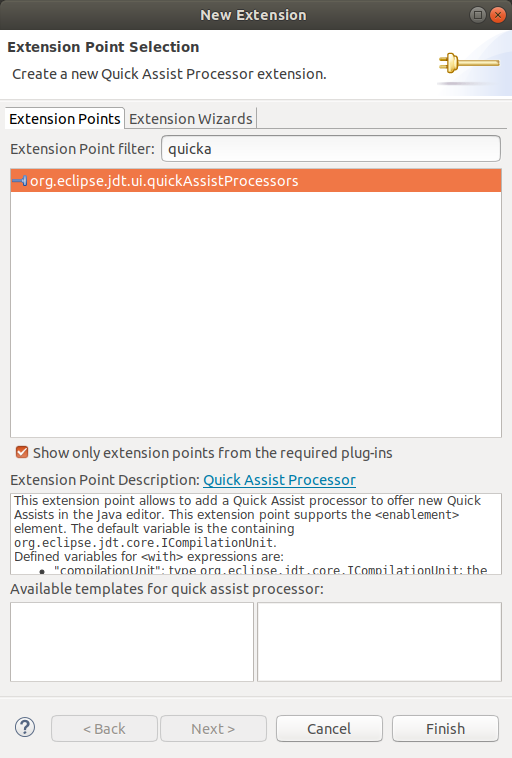
Press the Finish button.
Change the ID to com.vogella.jdt.quickfix.gettersettergenerate and the label to Generate Getter and Setter.
Cicking on the class: link.
This opens a class creation wizard.
Use this wizard to create the QuickAssistsProcessorGetterSetter class.
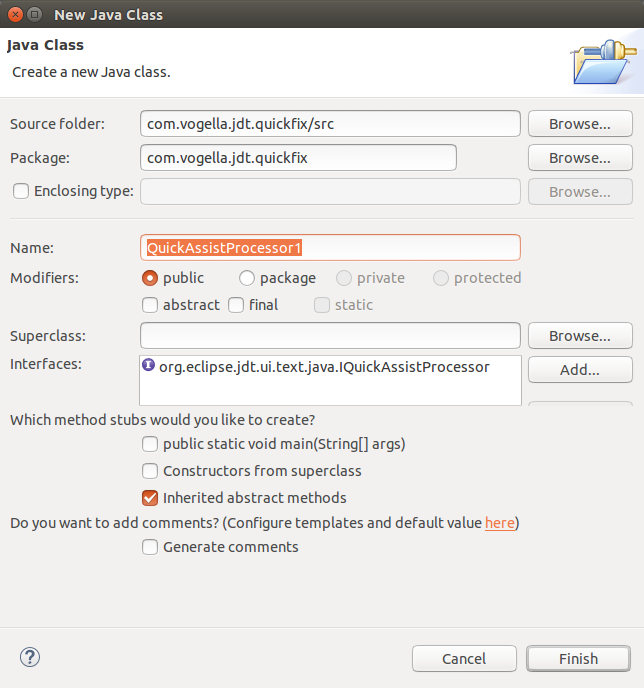
Press the Finish button.
11.3. Find out how to call the generate getter and setter action
By using the menu spy ALT+SHIFT+F2 the action behind the menu can be found out. This action will be triggered by your quick assist.
11.4. Provide IJavaCompletionProposals with an IQuickAssistProcessor
The following IQuickAssistProcessor can be used to show an IJavaCompletionProposal that can be used to open the Generate Getters and Setters dialog.
package com.vogella.jdt.quickfix2;

import java.util.ArrayList;
import java.util.List;

import org.eclipse.core.runtime.CoreException;
import org.eclipse.jdt.core.ICompilationUnit;
import org.eclipse.jdt.core.dom.ASTNode;
import org.eclipse.jdt.core.dom.ASTVisitor;
import org.eclipse.jdt.core.dom.ArrayAccess;
import org.eclipse.jdt.core.dom.FieldDeclaration;
import org.eclipse.jdt.core.dom.SimpleName;
import org.eclipse.jdt.core.dom.TypeDeclaration;
import org.eclipse.jdt.internal.ui.javaeditor.CompilationUnitEditor;
import org.eclipse.jdt.internal.ui.text.correction.AssistContext;
import org.eclipse.jdt.internal.ui.text.java.AbstractJavaCompletionProposal;
import org.eclipse.jdt.ui.actions.AddGetterSetterAction;
import org.eclipse.jdt.ui.text.java.IInvocationContext;
import org.eclipse.jdt.ui.text.java.IJavaCompletionProposal;
import org.eclipse.jdt.ui.text.java.IProblemLocation;
import org.eclipse.jdt.ui.text.java.IQuickAssistProcessor;
import org.eclipse.jface.text.ITextViewer;
import org.eclipse.jface.viewers.StyledString;
import org.eclipse.swt.graphics.Image;

@SuppressWarnings("restriction")
public class QuickAssistsProcessorGetterSetter implements IQuickAssistProcessor {
    private boolean hasFields = false;

    @Override
    public boolean hasAssists(IInvocationContext context) throws CoreException {
        // currently hasAssists is not called by JDT
        return true;
    }

    @Override
    public IJavaCompletionProposal[] getAssists(IInvocationContext context, IProblemLocation[] locations)
            throws CoreException {
        hasFields = false;
        ASTNode coveringNode = context.getCoveringNode();
        if (coveringNode == null) {
            return null;
        }
        // we should have selected a class name
        if (!(coveringNode instanceof SimpleName)) {
            return null;
        }
        // ensure that simple names parent is a type declaration
        if (!(coveringNode.getParent() instanceof TypeDeclaration)) {
            return null;
        }
        coveringNode.getRoot().accept(new ASTVisitor() {
            @Override
            public boolean visit(FieldDeclaration node) {
                hasFields = true;
                return super.visit(node);
            }
        });

        if (!hasFields) {
            return null;
        }

        List<IJavaCompletionProposal> proposals = new ArrayList<>();

        addGetterAndSetterProposal(context, proposals);

        return proposals.toArray(new IJavaCompletionProposal[proposals.size()]);
    }

    private void addGetterAndSetterProposal(IInvocationContext context, List<IJavaCompletionProposal> proposals) {
        proposals.add(new AbstractJavaCompletionProposal() {
            @Override
            public StyledString getStyledDisplayString() {
                ICompilationUnit compilationUnit = context.getCompilationUnit();
                return new StyledString(
                        "Generate Getter and setter for " + compilationUnit.findPrimaryType().getElementName());
            }

            @Override
            protected int getPatternMatchRule(String pattern, String string) {
                // override the match rule since we do not work with a pattern, but just want to
                // open the "Generate Getters and Setters..." dialog
                return -1;
            };

            @Override
            public void apply(ITextViewer viewer, char trigger, int stateMask, int offset) {
                if (context instanceof AssistContext) {
                    AssistContext assistContext = (AssistContext) context;
                    AddGetterSetterAction addGetterSetterAction = new AddGetterSetterAction(
                            (CompilationUnitEditor) assistContext.getEditor());

                    addGetterSetterAction.run();
                }
            }
        });
    }
}
11.5. Validate
When starting an Eclipse IDE the Generate Getter and Setter for {IType} quick assist should show up, when pressing Ctrl+1 in a Java editor.
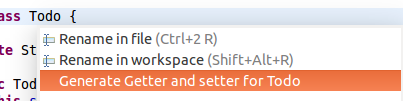
12. Exercise - Eclipse JDT quick fix - Finding predefined problem IDs
A quick fix can be used to resolve a problem in the code.
The IQuickFixProcessor is pretty similar to an IQuickAssistProcessor, but just reacts on certain problems in an editor or in the problems view.
The IProblem interface contains a predefined set of problem IDs.
Due to the huge amount of problem IDs it sometimes is pretty hard to figure out, which problem id is in charge for a particular problem.
In this exercise we implement an IQuickFixProcessor find the correct id.
The previously created com.vogella.jdt.quickfix project is reused for this.
12.1. Using the org.eclipse.jdt.ui.quickFixProcessors extension point
Press the Add button in the Extensions tab of the plugin.xml editor.
Add an extension for the org.eclipse.jdt.ui.quickFixProcessors extension point.
Press the Finish button.
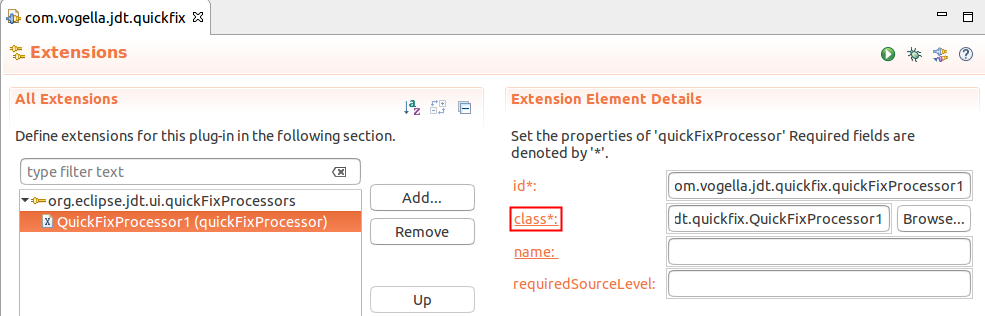
Ass class use com.vogella.jdt.quickfix.ProblemIdQuickFixProcessor. Clicking on the class*: link to create a class. Press the Finish button.
12.2. Provide IJavaCompletionProposals with an IQuickFixProcessor
Since we do not want to add any corrections the getCorrections() can return null.
Eclipse injects the problem id into hasCorrections() so this is where we can print it to standard out.
package com.vogella.jdt.quickfix;

import org.eclipse.core.runtime.CoreException;
import org.eclipse.jdt.core.ICompilationUnit;
import org.eclipse.jdt.ui.text.java.IInvocationContext;
import org.eclipse.jdt.ui.text.java.IJavaCompletionProposal;
import org.eclipse.jdt.ui.text.java.IProblemLocation;
import org.eclipse.jdt.ui.text.java.IQuickFixProcessor;

public class ProblemIdQuickFixProcessor implements IQuickFixProcessor {

    @Override
    public boolean hasCorrections(ICompilationUnit unit, int problemId) {

        System.out.println(problemId);

        return false;
    }

    @Override
    public IJavaCompletionProposal[] getCorrections(IInvocationContext context, IProblemLocation[] locations)
            throws CoreException {

        return null;
    }

}
12.3. Validate
Start the project as an Eclipse Application and trigger the quick fix menu by pressing Ctrl+1 with focus on a compile warning or error.
This will trigger the hasCorrections() method in our ProblemIdQuickFixProcessor and the problem id will be printed to the system output.
13. Exercise - Eclipse JDT clean up action
This exercise shows you how to provide an Eclipse clean up action. It is based on the Eclipse clean up guide.
Reuse the com.vogella.jdt.quickfix project.
Ensure the MANIFEST.MF contains the following dependencies.
  • org.eclipse.text (1)
  • org.eclipse.swt (1)
  • org.eclipse.ltk.core.refactoring (1)
  • org.eclipse.jdt.ui
  • org.eclipse.jdt.core
  • org.eclipse.core.runtime
| 1 | new dependencies |
13.1. Provide a ICleanUpFix with ICleanUp
Create a new extension for the org.eclipse.jdt.ui.cleanUps extension point.
Do a right-click on the extensions and choose .
After that click on class*: to create the corresponding Java class and call it CopyrightUpdaterCleanUp.
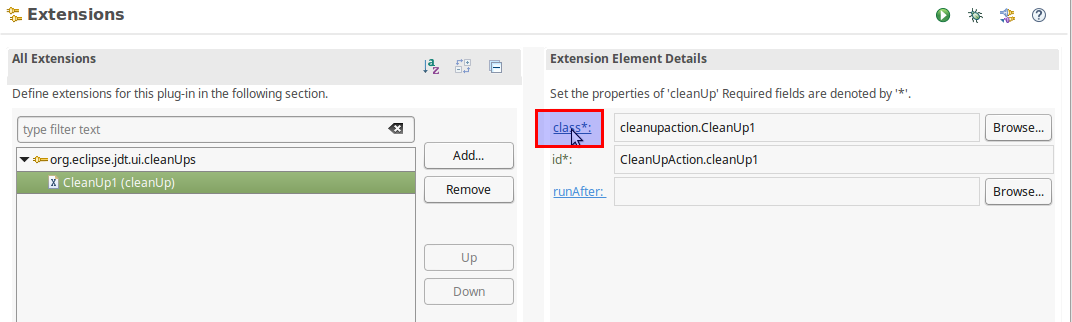
After that we want to implement the methods required by the interface ICleanUp.
The whole class then looks like this:
public class CopyrightsFix implements ICleanUp {

    public static final String CLEANUP_COPYRIGHTS_FLAG = "cleanup.update_copyrights";
    private CleanUpOptions options;
    private RefactoringStatus status;

    public CopyrightsFix() {
    }

    @Override
    public CleanUpRequirements getRequirements() {
        boolean changedRegionsRequired = false;
        Map<String, String> compilerOptions = null;
        boolean isUpdateCopyrights = options.isEnabled(CLEANUP_COPYRIGHTS_FLAG);
        return new CleanUpRequirements(isUpdateCopyrights, isUpdateCopyrights, changedRegionsRequired, compilerOptions);
    }

    @Override
    public String[] getStepDescriptions() {
        if (options.isEnabled(CLEANUP_COPYRIGHTS_FLAG)) {
            return new String[] {"Update Copyrights"};//$NON-NLS-1$
        }
        return null;
    }

    @Override
    public void setOptions(CleanUpOptions options) {
        Assert.isLegal(options != null);
        Assert.isTrue(options == null);
        this.options = options;
    }

    @Override
    public RefactoringStatus checkPreConditions(IJavaProject project, ICompilationUnit[] compilationUnits, IProgressMonitor monitor) throws CoreException {
        if (options.isEnabled(CLEANUP_COPYRIGHTS_FLAG)) {
            status = new RefactoringStatus();
        }
        return new RefactoringStatus();
    }

    @Override
    public RefactoringStatus checkPostConditions(IProgressMonitor monitor) throws CoreException {
        try {
            if (status == null || status.isOK()) {
                return new RefactoringStatus();
            } else {
                return status;
            }
        } finally {
            status = null;
        }
    }

    @Override
    public ICleanUpFix createFix(CleanUpContext context) throws CoreException {
        CompilationUnit compilationUnit = context.getAST();
        if (compilationUnit == null) {
            return null;
        }

        return CopyrightsFix.createCleanUp(compilationUnit, options.isEnabled(CLEANUP_COPYRIGHTS_FLAG));
    }

}
13.2. Provide default options with an ICleanUpOptionsInitializer
If we want to provide default options for your cleanup we can do this by implementing the ICleanUpOptionsInitializer interface.
Add a new child element to the org.eclipse.jdt.ui.cleanUps extension point via .
Create the class outline by clicking on the class*: link.
The setDefaultOptions method can provide preselected options.
public class CopyrightOnSaveOptionsInitializer implements ICleanUpOptionsInitializer {

    @Override
    public void setDefaultOptions(CleanUpOptions options) {
        options.setOption(CopyrightsFix.CLEANUP_COPYRIGHTS_FLAG, CleanUpOptions.TRUE);
    }

}
13.3. Add the fix to the UI with an ICleanUpConfigurationUI
Finally, we want to add our new clean up action to the Eclipse UI.
This is done by implementing the ICleanUpConfigurationUI interface.
Add a new child element to the org.eclipse.jdt.ui.cleanUps extension point via .
For cleanUpKind choose cleanUp.
An implementation adding a new tab to the clean up configuration menu can look like this:
public class CopyrightTabPage implements ICleanUpConfigurationUI {

    private static final int CURRENT_YEAR = Calendar.getInstance().get(Calendar.YEAR);

    private CleanUpOptions options;

    public CopyrightTabPage() {
        super();
    }

    @Override
    public void setOptions(CleanUpOptions options) {
        this.options = options;
    }

    @Override
    public Composite createContents(Composite parent) {
        Composite result = new Composite(parent, SWT.NONE);
        result.setLayoutData(new GridData(SWT.FILL, SWT.FILL, true, true));
        GridLayout layout = new GridLayout(1, false);
        layout.marginHeight = 0;
        layout.marginWidth = 0;
        result.setLayout(layout);

        Group group= new Group(result, SWT.NONE);
        group.setLayoutData(new GridData(SWT.FILL, SWT.FILL, true, false));
        group.setLayout(new GridLayout(1, false));
        group.setText("Copyright Update");

        final Button updateCheckbox= new Button(group, SWT.CHECK);
        updateCheckbox.setLayoutData(new GridData(SWT.BEGINNING, SWT.CENTER, false, false));
        updateCheckbox.setText("Update the Copyrights");
        updateCheckbox.setSelection(options.isEnabled(CopyrightsFix.CLEANUP_COPYRIGHTS_FLAG));
        updateCheckbox.addSelectionListener(SelectionListener.widgetSelectedAdapter(e -> {
            options.setOption(CopyrightsFix.CLEANUP_COPYRIGHTS_FLAG,
                    updateCheckbox.getSelection() ? CleanUpOptions.TRUE : CleanUpOptions.FALSE);
        }));

        return result;
    }

    @Override
    public int getCleanUpCount() {
        return 1;
    }

    @Override
    public int getSelectedCleanUpCount() {
        return options.isEnabled(CopyrightsFix.CLEANUP_COPYRIGHTS_FLAG) ? 1 : 0;
    }

    @Override
    public String getPreview() {
        StringBuffer buf = new StringBuffer();

        buf.append("/*******************************************************************************\n"); //$NON-NLS-1$
        if (options.isEnabled(CopyrightsFix.CLEANUP_COPYRIGHTS_FLAG)) {
            buf.append(" * Copyright (c) 2005, ").append(CURRENT_YEAR).append(" IBM Corporation and others.\n"); //$NON-NLS-1$ //$NON-NLS-2$
        } else {
            buf.append(" * Copyright (c) 2005 IBM Corporation and others.\n"); //$NON-NLS-1$
        }
        buf.append(" * All rights reserved. This  program and the accompanying materials\n"); //$NON-NLS-1$
        buf.append(" * are made available under the terms of the Eclipse Public License v1.0\n"); //$NON-NLS-1$
        buf.append(" * which accompanies this distribution, and is available at\n"); //$NON-NLS-1$
        buf.append(" * https://www.eclipse.org/legal/epl-v10.html\n"); //$NON-NLS-1$
        buf.append(" *\n"); //$NON-NLS-1$
        buf.append(" * Contributors:\n"); //$NON-NLS-1$
        buf.append(" *     IBM Corporation - initial API and implementation\n"); //$NON-NLS-1$
        buf.append(" *******************************************************************************/\n"); //$NON-NLS-1$

        return buf.toString();
    }

}
13.4. Implement the ICleanUpFix
The only step missing now is the implementation of the ICleanUpFix interface.
The ICleanUpFix implementation performs the desired change.
You can find a complete example of a Copyright clean up / save action including the ICleanUpFix implementation here:
https://github.com/vogellacompany/saneclipse/tree/master/org.eclipse.jdt.copyrightsaveaction
14. Exercise - Eclipse JDT save action
To add a save action instead of a clean up action follow the Exercise - Eclipse JDT clean up action section above but choose saveAction as cleanUpKind in the
cleanUpConfigurationUI extension point.
You can add a fix as save and clean up action by creating two cleanUpConfigurationUI extension points.
15. Exercise - Adding additional Java templates via your plug-in
In this exercise, you will add custom templates to JDT to make your life as Java programmer easier.
15.1. Create project and add dependencies
Create a new plug-in named com.vogella.jdt.templates.
Add org.eclipse.ui.editors as a dependency to its MANIFEST.MF file.
15.2. Create templates
Create the following file named additional-templates.xml in the project folder.
<?xml version="1.0" encoding="UTF-8"?>
<templates>
    <template name="localvariable" description="Local Variable"
        id="org.eclipse.jdt.ui.templates.localvariable" context="java-statements"
        enabled="true" autoinsert="false">
        ${variabletype} ${myvar:newName(var)}= new ${variabletype}(${cursor});
    </template>

    <template name="string" description="String (empty)"
        id="org.eclipse.jdt.ui.templates.emptystring" context="java-statements"
        enabled="true" autoinsert="false">
        String ${myvar:newName(var)}= "";
    </template>

    <template name="arrayexample" description="Creates an Array with some example content"
        id="org.eclipse.jdt.ui.templates.arrayexample" context="java-statements"
        enabled="true" autoinsert="false">
        String[] ${myvar:newName(var)} =
        new String[]{"Windows 7", "macOS", "Debian", "Ubuntu", "Redhat",
        "Android", "iPhone", "Suse", "Windows XP", "Windows Mobile", "OS/2", "WebOS"};
    </template>

</templates>
Add an extension for the org.eclipse.ui.editors.templates extension point.
Right-click on your extension and select include and point to the file.
The resulting entry in plugin.xml should look like the following.
   <extension
         point="org.eclipse.ui.editors.templates">
      <include
            file="additional-templates.xml">
      </include>
   </extension>
15.3. Validate
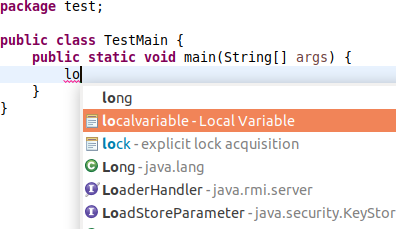
Start your runtime Eclipse and open a Java file. Ensure that your templates are visible.
16. Optional exercise - Implementing your own code completion engine
You can define your custom completion engine.
This allows you to completely control the completion proposals. You engine will be include on the first page of code completion but by pressing Ctrl+Space, you can circle to your specific one.
In this exercise, you review the code of an existing completion engine.
Open https://git.eclipse.org/r/#/admin/projects/platform/eclipse.platform.ui.tools in a browser and click on anonymous http to see the Git clone URL.
Clone the repository and import the org.eclipse.e4.tools.jdt.templates project.
The org.eclipse.jdt.ui.javaCompletionProposalComputer extension in this plug-in defines a new completion engine.
    <extension
         point="org.eclipse.jdt.ui.javaCompletionProposalComputer"
         id="e4BuilderCompletionProposalComputer">
      <javaCompletionProposalComputer
            activate="true"
            categoryId="org.eclipse.e4.tools.jdt.templates.e4ProposalCategory"
            class="org.eclipse.e4.internal.tools.jdt.templates.E4TemplateCompletionProposalComputer">
      </javaCompletionProposalComputer>
    </extension>
Have a look at E4TemplateCompletionProposalComputer and understand when this completion engine will be active.
17. Eclipse JDT resources
17.4. vogella Java example code
If you need more assistance we offer Online Training and Onsite training as well as consulting


